
Setup guide
Your Book Them Twice setup guide
Every click, in order, with a picture for each one and a fix for every snag we have seen. Go at your own pace. Nobody expects you to know any of this already.
Parts 1 to 3 take 2 to 3 hours and get you to your kickoff call. Do steps 3 to 7 in one sitting (about an hour), because each key is shown only once. Parts 4 to 6 give you your own website, email and business texting. They take another 3 to 4 hours of clicking, plus waiting: up to 2 days for your domain and email to check out, and 1 to 2 weeks for texting approval. Start Part 4 in the same week as your kickoff call so the texting approval clock starts early. Tap any picture to see it full size. The pictures are drawn demo screens, so yours may look a little different. Menus move from time to time; if a button isn't where the picture shows, ask your Viktor where it is now.
Download the printable checklist Watch the video
All seven parts, narrated, with captions (about 9 minutes). Pause it whenever you need to, do the step, then press play again.
Part 1 · steps 1 to 2
Get ready
A domain and four logins. Nothing technical yet.
Get your own domain 15 to 30 minutes
Your booking pages, the emails your guests get and the approval for business texting all run on a domain you own.
- Already own one? Skip to step 2. Have the login for the company you bought it from ready for the call.
- Go to Namecheap, GoDaddy or Cloudflare and search for a name. Your company name works, like smithproperties.com.
- Pick a .com.
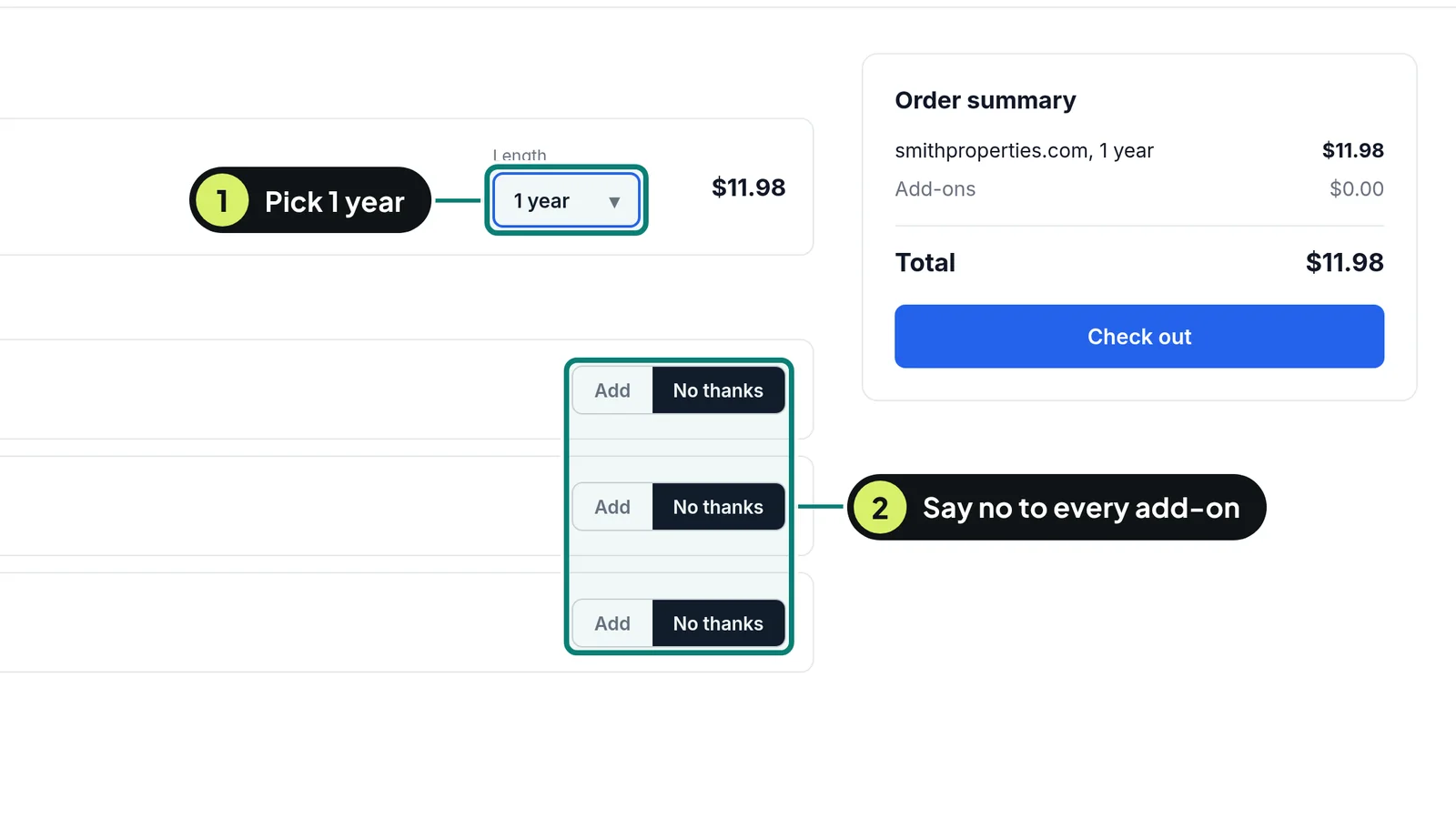
- Set the length to 1 year.
- Say no to every add-on: domain protection, email, website builder and hosting. You don't need any of them.
- Pay. It is about $10 to $20 for the year.
If something goes wrong (3)
- The name you want is taken or costs thousands
- Add your company word or your town, like smithproperties.com or lakecabinduluth.com. It doesn't need to be your brand.
- It defaults to 2 or 3 years
- Change the length to 1 year before you pay.
- It offers "full domain protection" for a monthly fee
- Skip it. Choose "No thanks".
Open your four logins 10 minutes
Every later step happens in one of these four places. Having them open saves you hunting for passwords halfway through.
- Use a computer, not a phone.
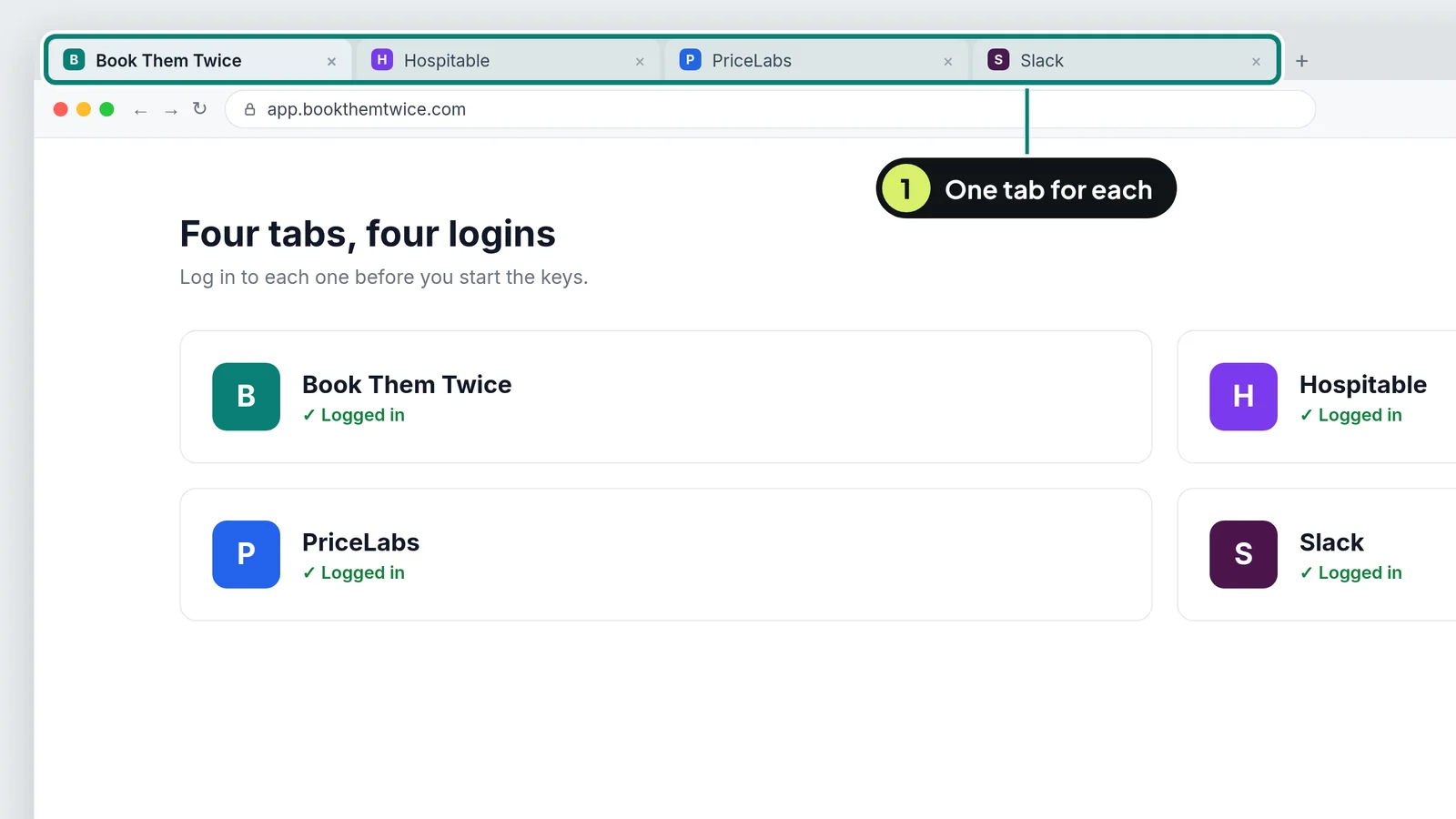
- Open four browser tabs and log in to each one:
- Book Them Twice: app.bookthemtwice.com
- Hospitable: my.hospitable.com, as the account owner or a full-access admin
- PriceLabs, if you use it: your plan must be paid (Dynamic Pricing at least) and connected to Airbnb
- Slack, with Viktor in it. No Viktor yet? Get it at go.cashflowdiary.com/viktor first.
If something goes wrong (2)
- You don't remember a password
- Click "Forgot password" on that site, reset it, then come back. Don't start the keys until all four are open.
- Not sure PriceLabs is connected to Airbnb
- In PriceLabs, open your listings. Each one should show Airbnb as its channel. If it shows something else, fix that in PriceLabs first.
Part 2 · steps 3 to 8
Bring your past guests in
Make three keys, then your own Viktor connects everything and copies your guests into Book Them Twice.
Make your Book Them Twice key 5 to 10 minutes
This key lets your own Viktor put your guests into your Book Them Twice account. One key covers everything, so you only visit this screen once.
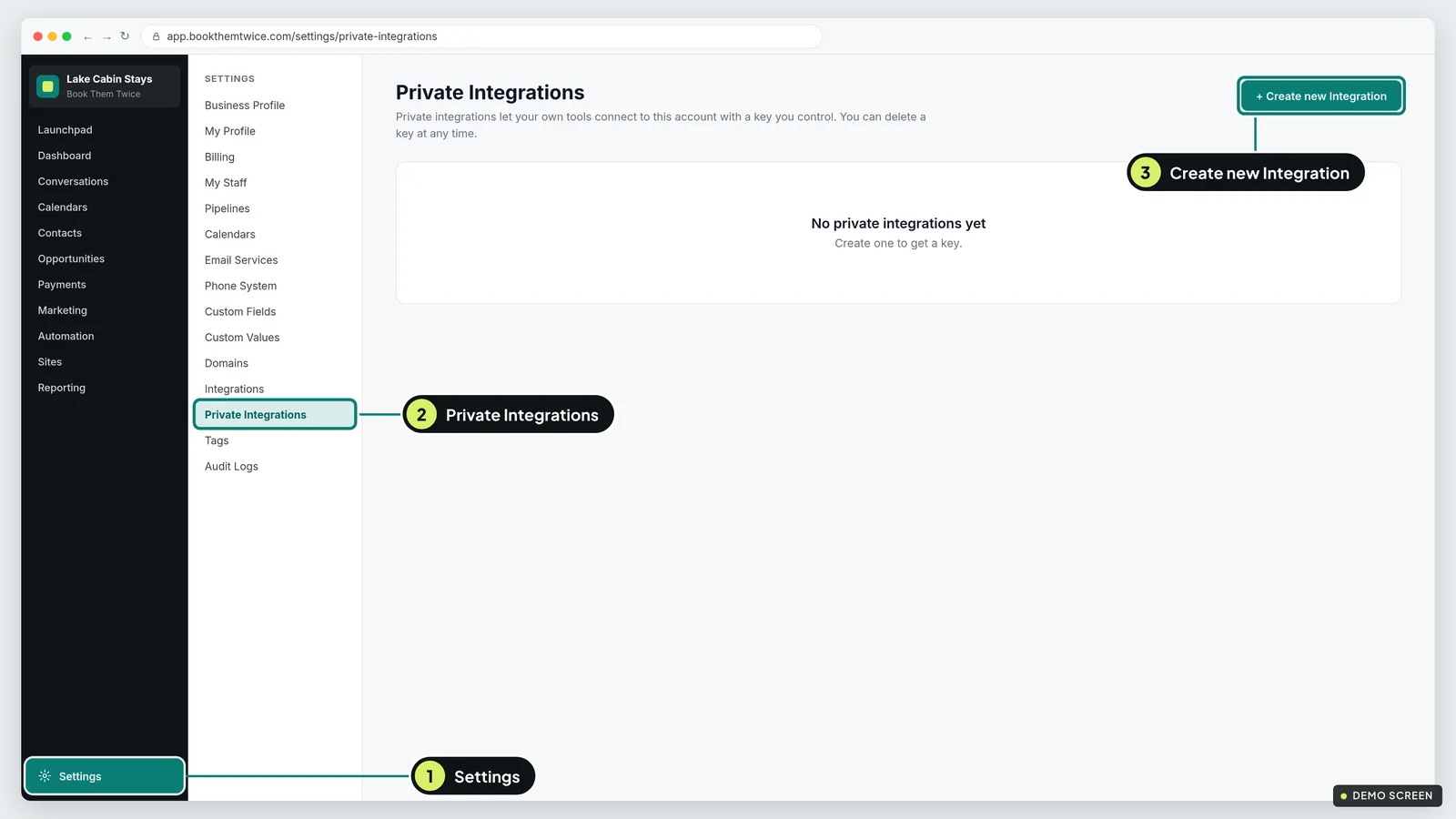
- In Book Them Twice, click Settings at the bottom left.
- Click Private Integrations, then Create new Integration.
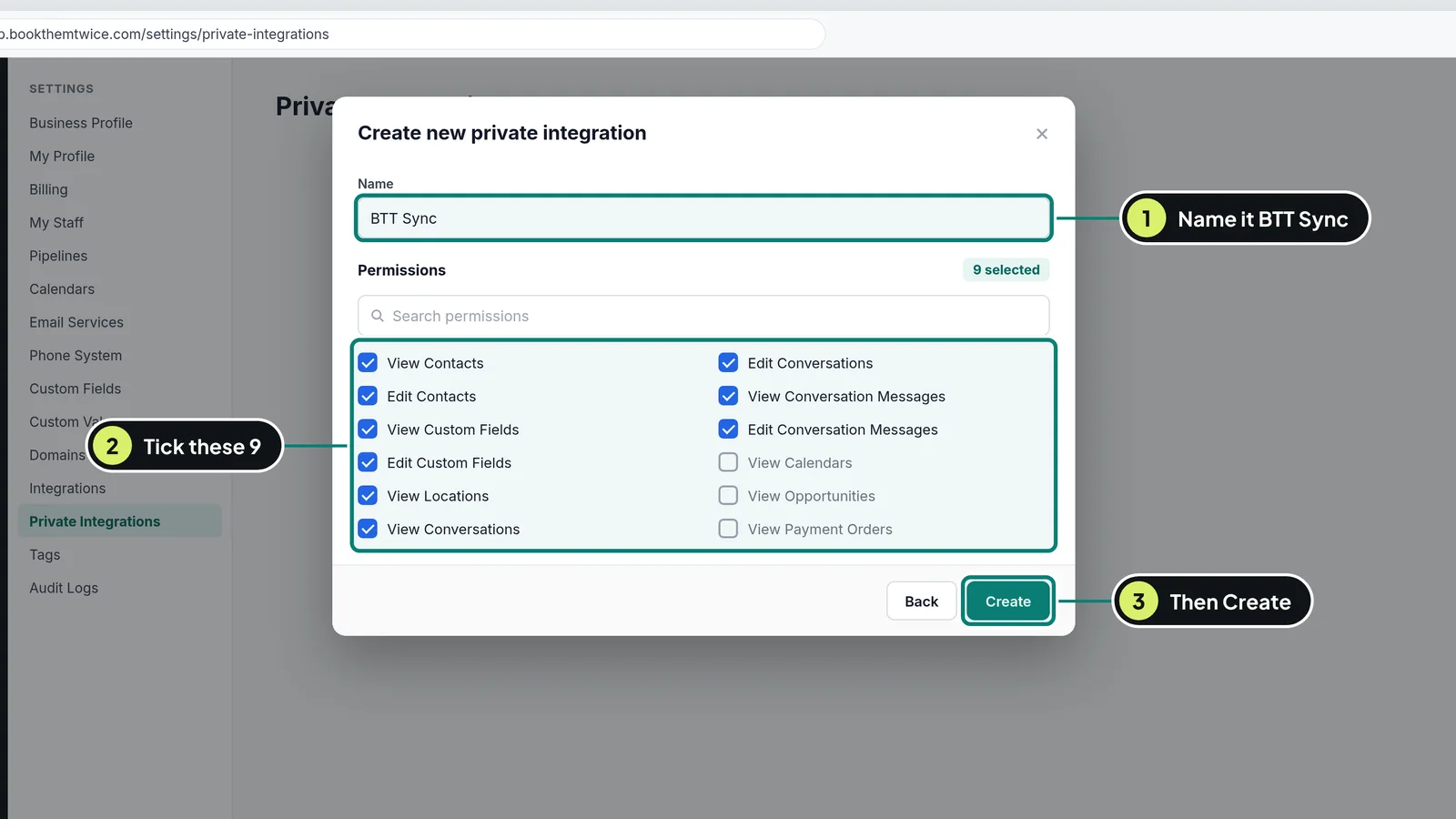
- Name it BTT Sync.
- Tick these 9 permissions: View Contacts, Edit Contacts, View Custom Fields, Edit Custom Fields, View Locations, View Conversations, Edit Conversations, View Conversation Messages, Edit Conversation Messages.
- Click Create.
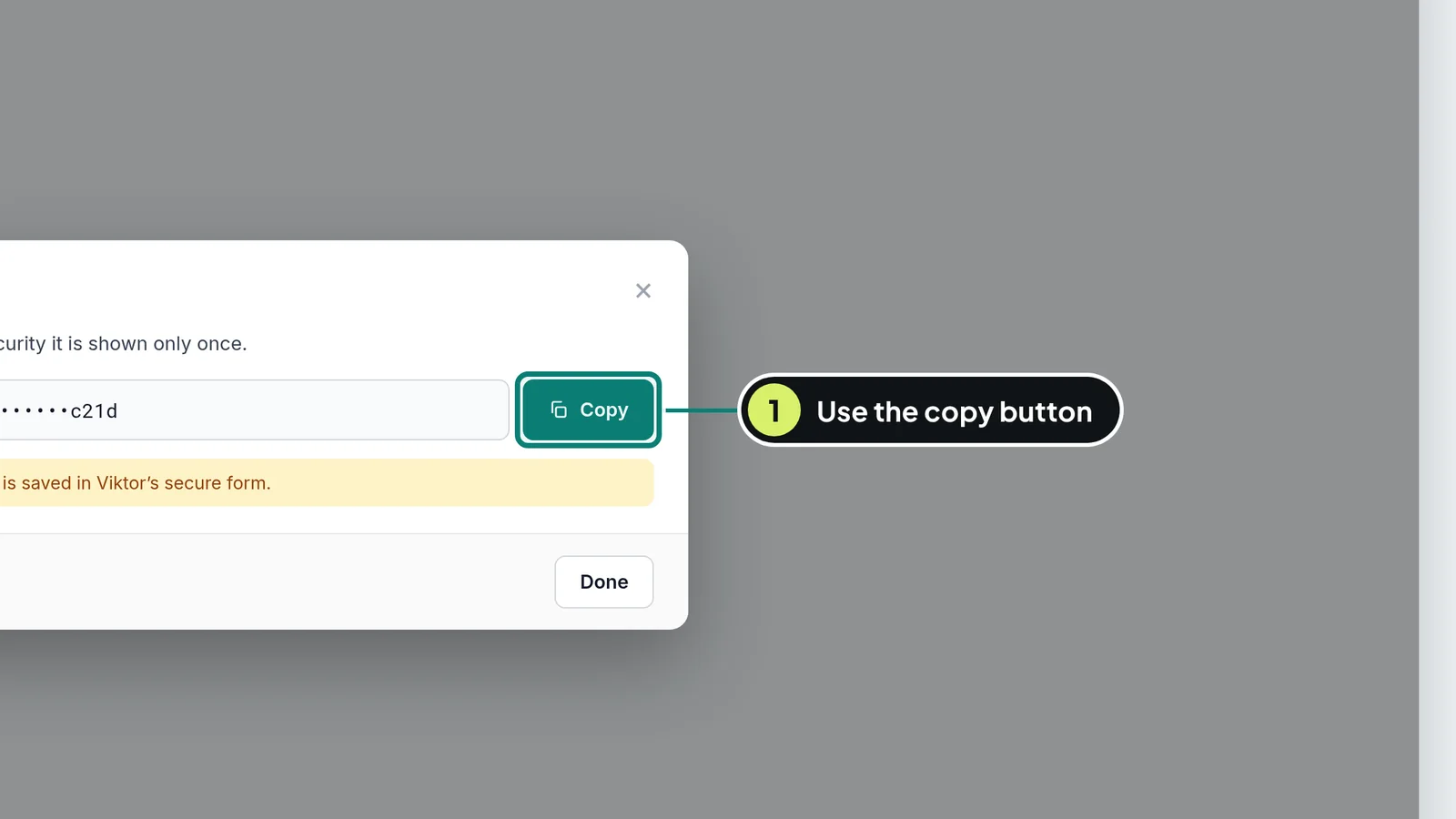
- Click the copy button next to the key. Don't select the key with your mouse. Keep this tab open until step 7.
If something goes wrong (3)
- You don't see Private Integrations
- Email support@bookthemtwice.com and we switch it on for your account. Carry on with step 4 meanwhile.
- You closed the window before copying the key
- No harm done. Delete that integration and create a new one the same way.
- You missed a permission
- Open BTT Sync, click Edit, tick the missing box, save, then copy the key again with the copy button.
Make your Hospitable key 5 to 10 minutes
This key lets your Viktor read your properties, stays and guests. Read only: it can't change your prices, calendar or listings.
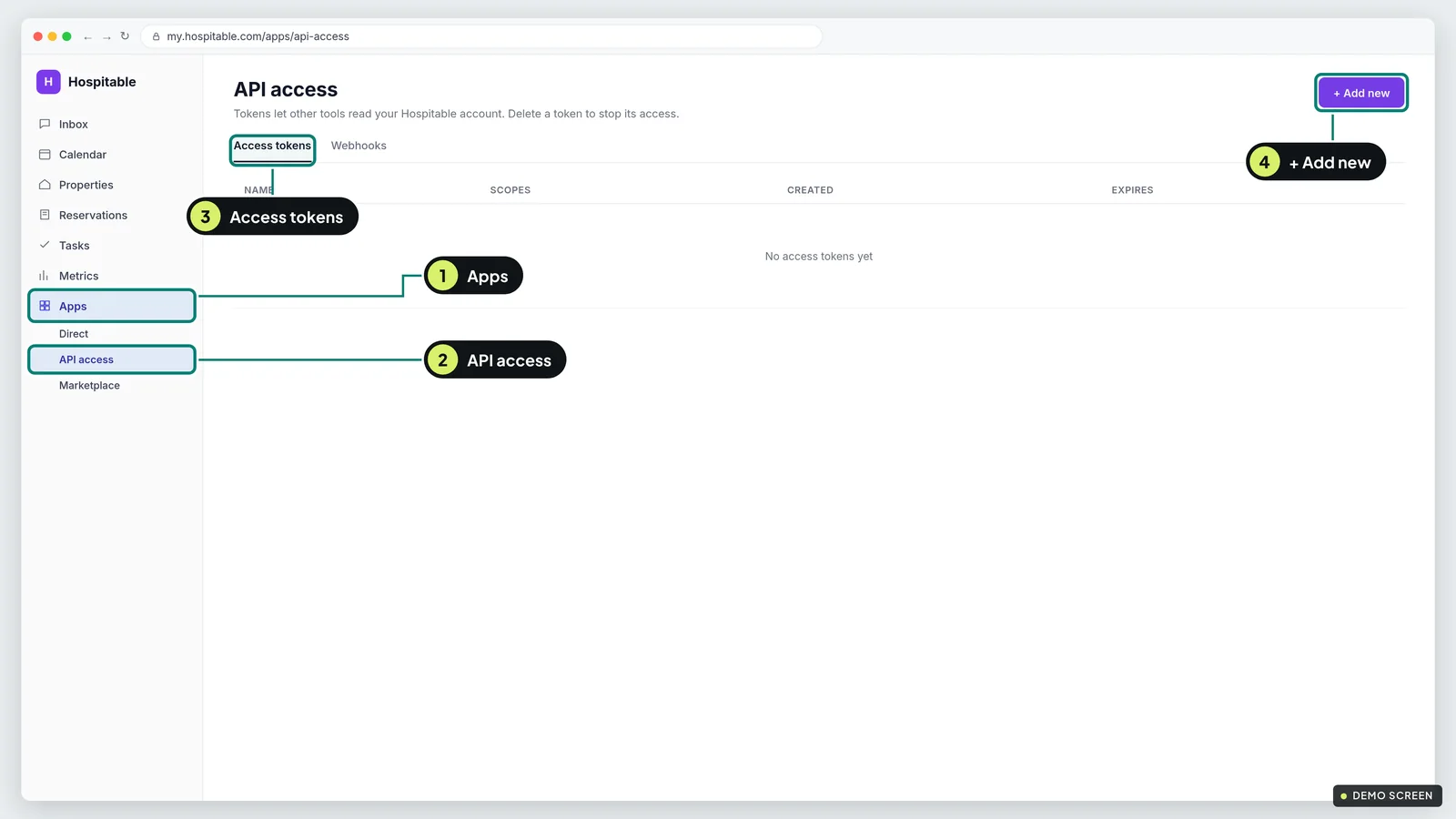
- In Hospitable, click Apps in the left sidebar, then API access. On some accounts it is Settings > Integrations.
- On the Access tokens tab, click + Add new.
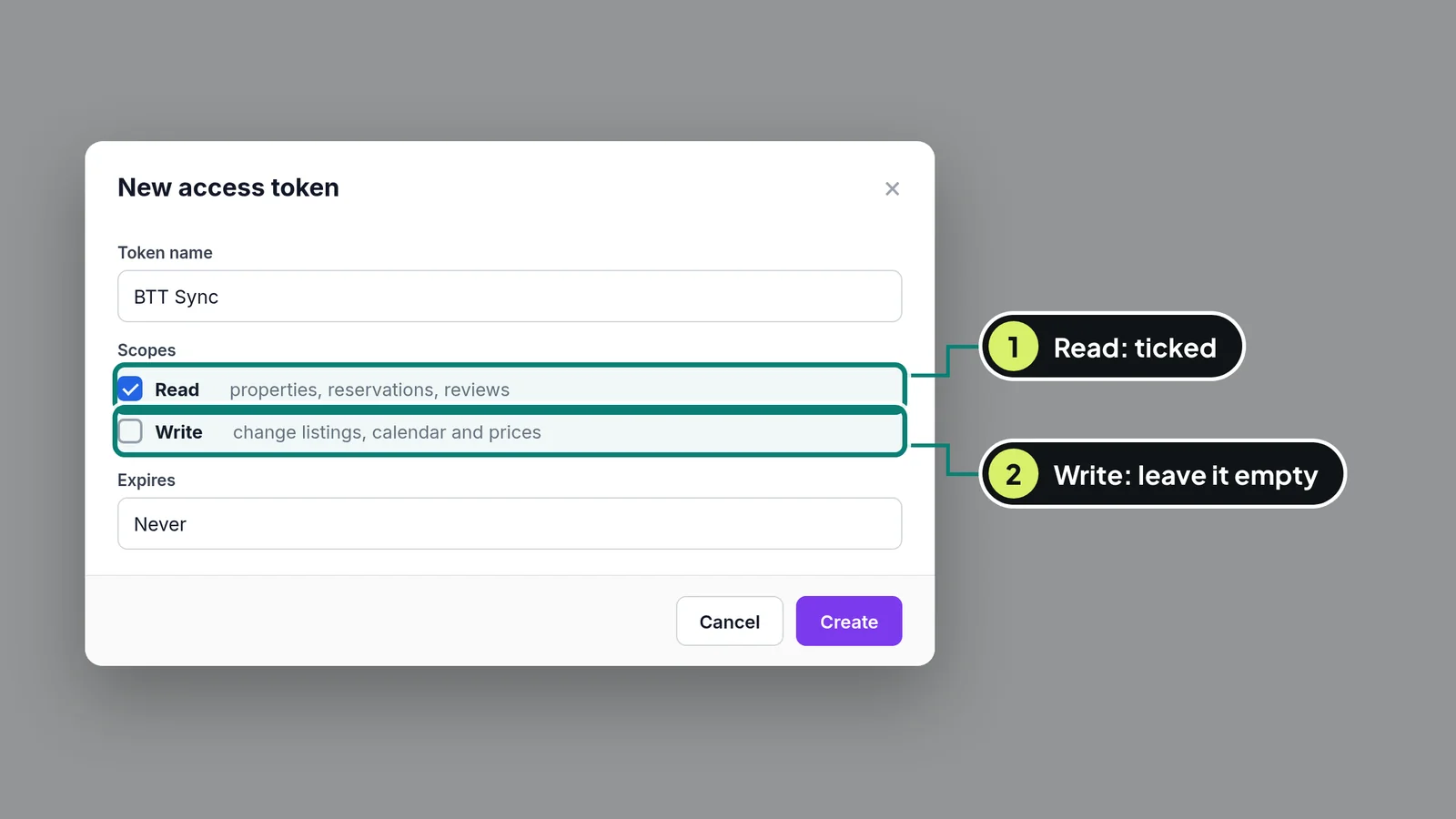
- Name it BTT Sync.
- Tick Read only. Leave Write unticked.
- Click Create, then copy the token with its copy button. It is long. That is normal.
If something goes wrong (2)
- You can't find API access
- Look under Settings > Integrations instead of Apps. Still stuck? Ask your Viktor: "Where do I make an API access token in Hospitable?"
- You lost the token
- Make a new one the same way. Tokens are shown only once.
Make your PriceLabs key (only if you use PriceLabs) 5 to 15 minutes
With this key your Viktor can read your prices and occupancy, so it can suggest better prices. Skip this step if you don't use PriceLabs.
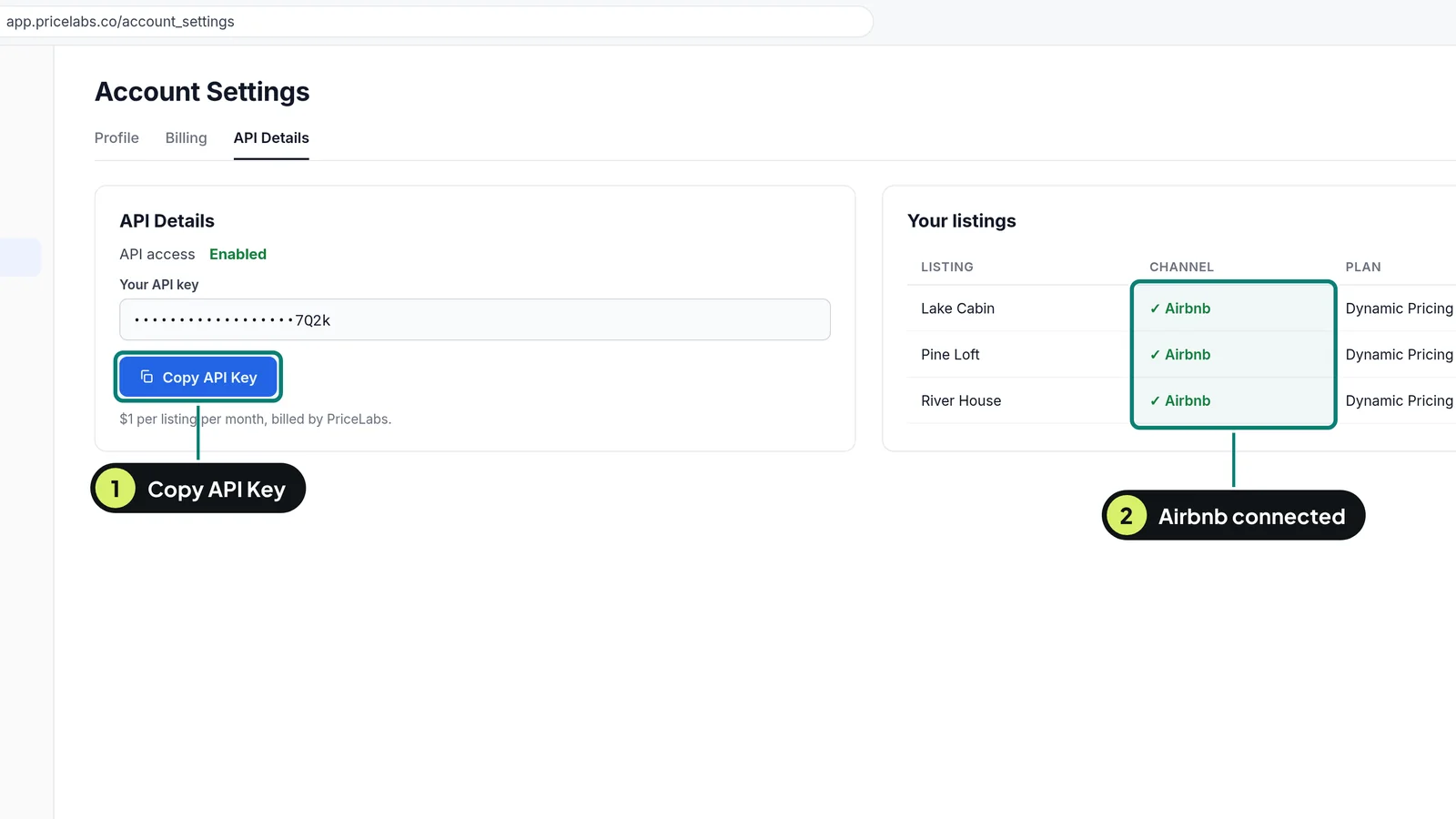
- In PriceLabs, open Account Settings, then API Details.
- Click Enable, choose I Need API Access, type API and click Continue.
- Click Copy API Key.
- PriceLabs charges $1 per listing per month for API access, billed by PriceLabs.
If something goes wrong (2)
- Your plan isn't paid yet
- Pick a paid plan with at least Dynamic Pricing in PriceLabs, then come back to this step.
- Airbnb isn't connected in PriceLabs
- Connect Airbnb in PriceLabs first. Prices set in PriceLabs only reach your guests through that connection.
Send the Guest Sync message to Viktor 5 minutes, then a few minutes of waiting
One message tells your Viktor to install the Guest Sync and ask you for each key safely.
- Open the Guest Sync page (bookthemtwice.com/sync-kit) and click Copy the prompt.
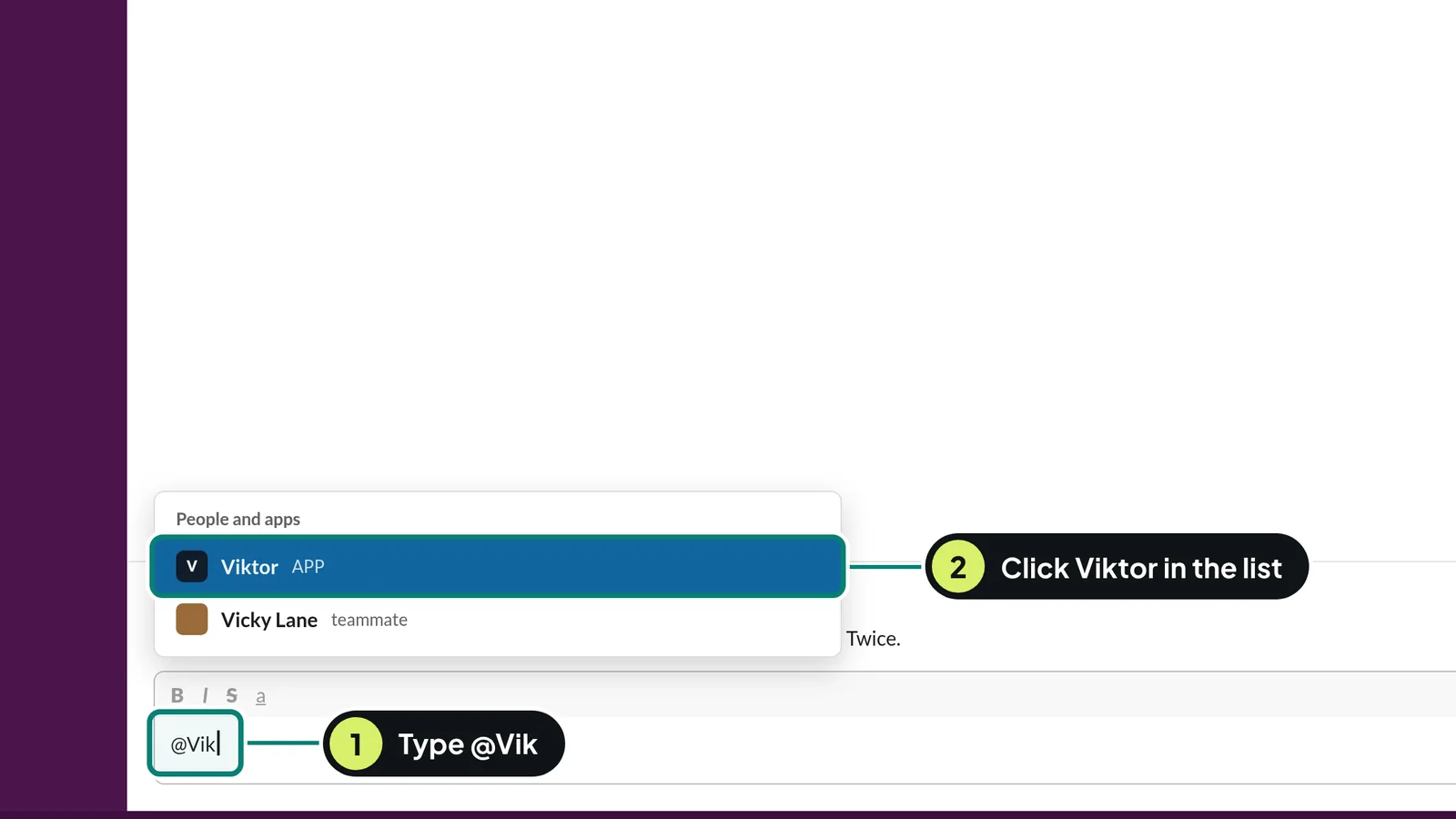
- In Slack, open your direct message with Viktor.
- Type @Viktor and click Viktor in the list that pops up. It turns into a blue name.
- Paste (Cmd+V on a Mac, Ctrl+V on Windows) and press Enter.
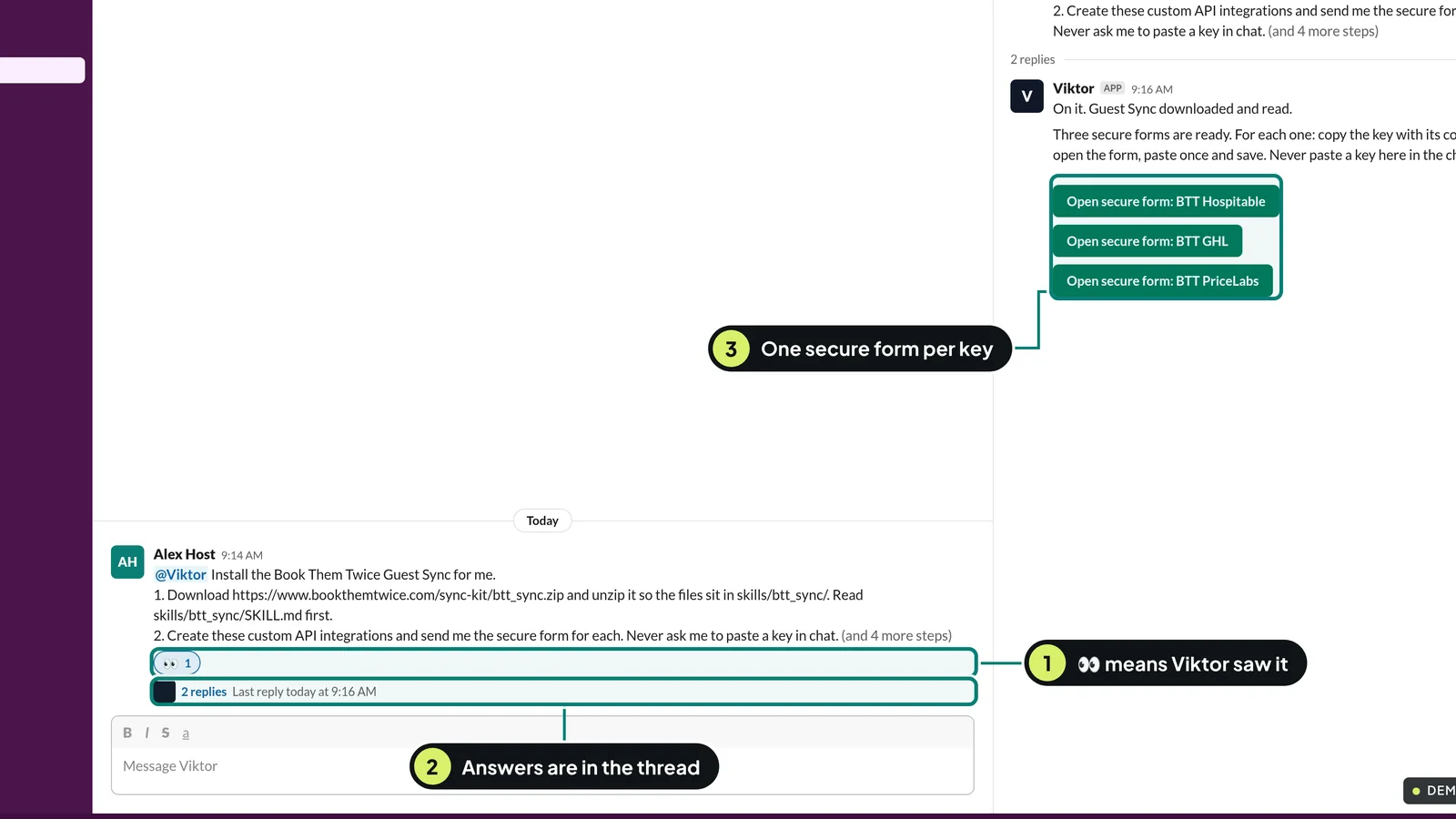
- Within a minute you see 👀 on your message. That means Viktor is on it.
- Viktor answers in a thread under your message. Click the replies link to open it.
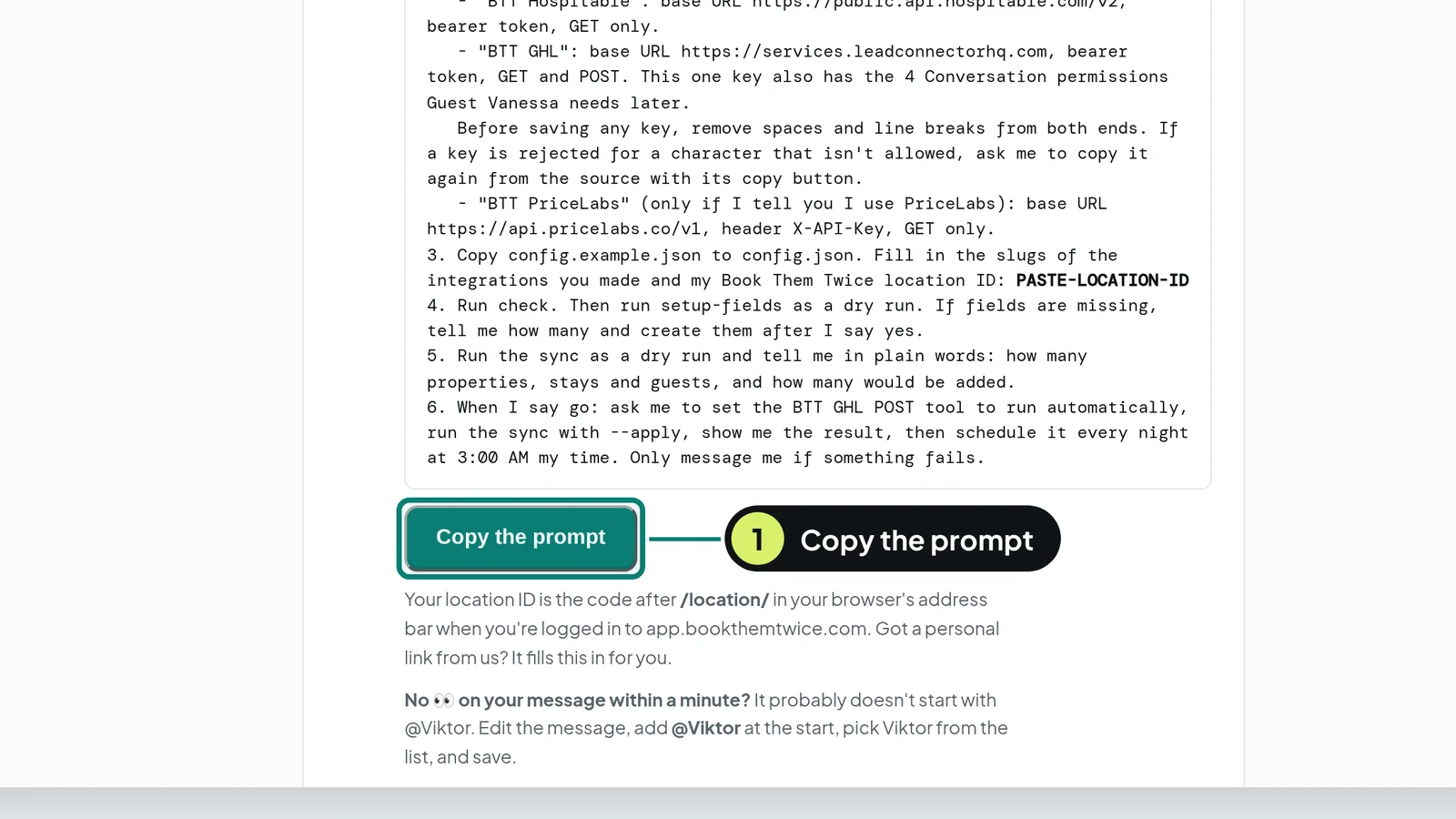
If something goes wrong (2)
- No 👀 after a minute
- The message probably doesn't start with @Viktor picked from the list. Hover the message, click Edit, add @Viktor at the start, pick it from the list and save.
- You can't see Viktor's answer
- It is in the thread. Click "1 reply" (or "2 replies") under your message. The thread opens on the right.
Paste each key into its secure form 10 to 20 minutes
Keys are like house keys. They go into a secure form, never into the chat, so nobody can read them later.
- In the thread, Viktor sends a link to a secure form for each key: BTT Hospitable, BTT GHL (your Book Them Twice key) and BTT PriceLabs if you use it.
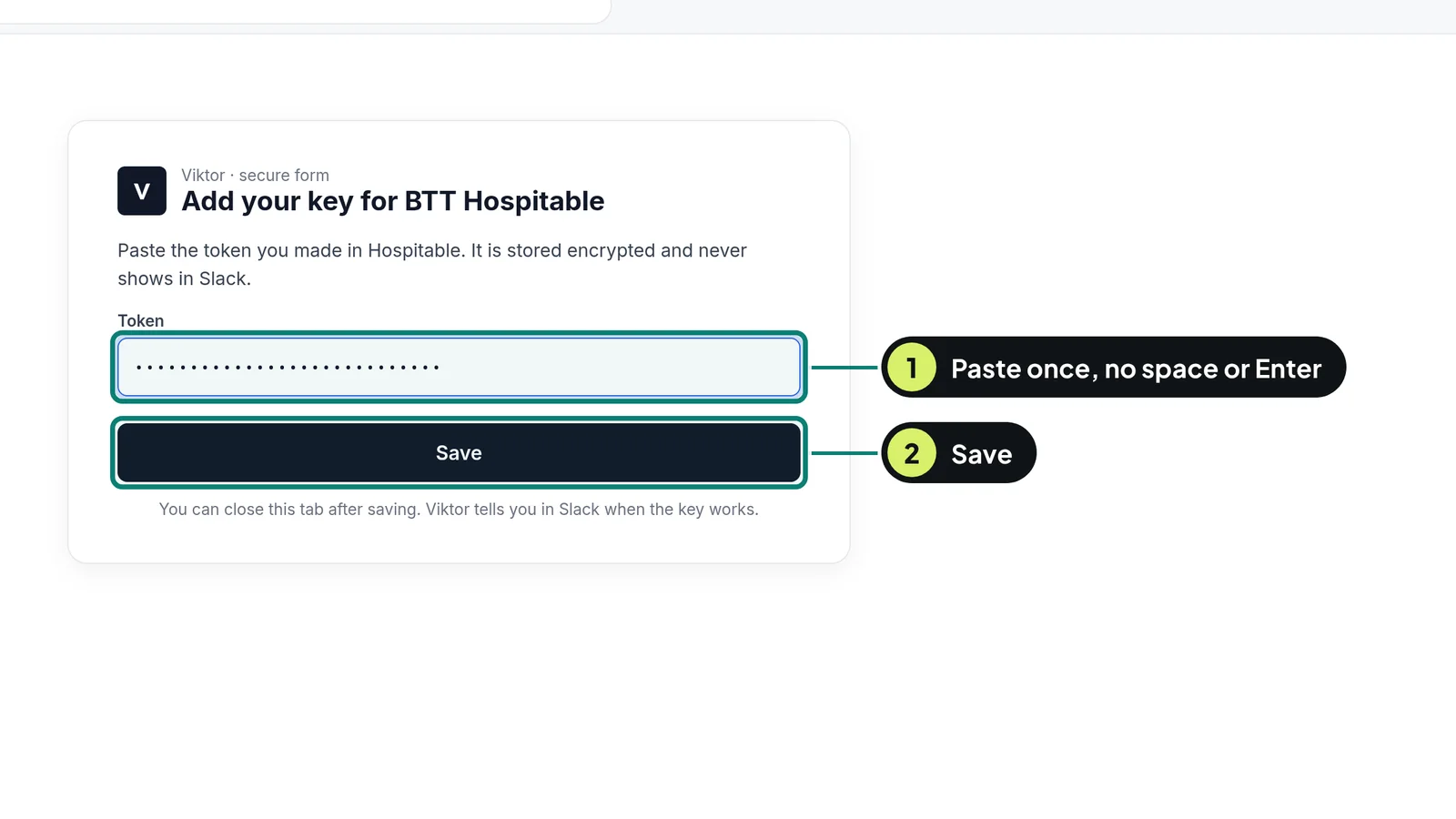
- Open the first link. Go back to the tab where you made that key and click its copy button again.
- Paste into the form once. Don't press space or Enter after it. Click Save.
- Do the same for each form. Viktor tests each key and tells you in the thread when it works.
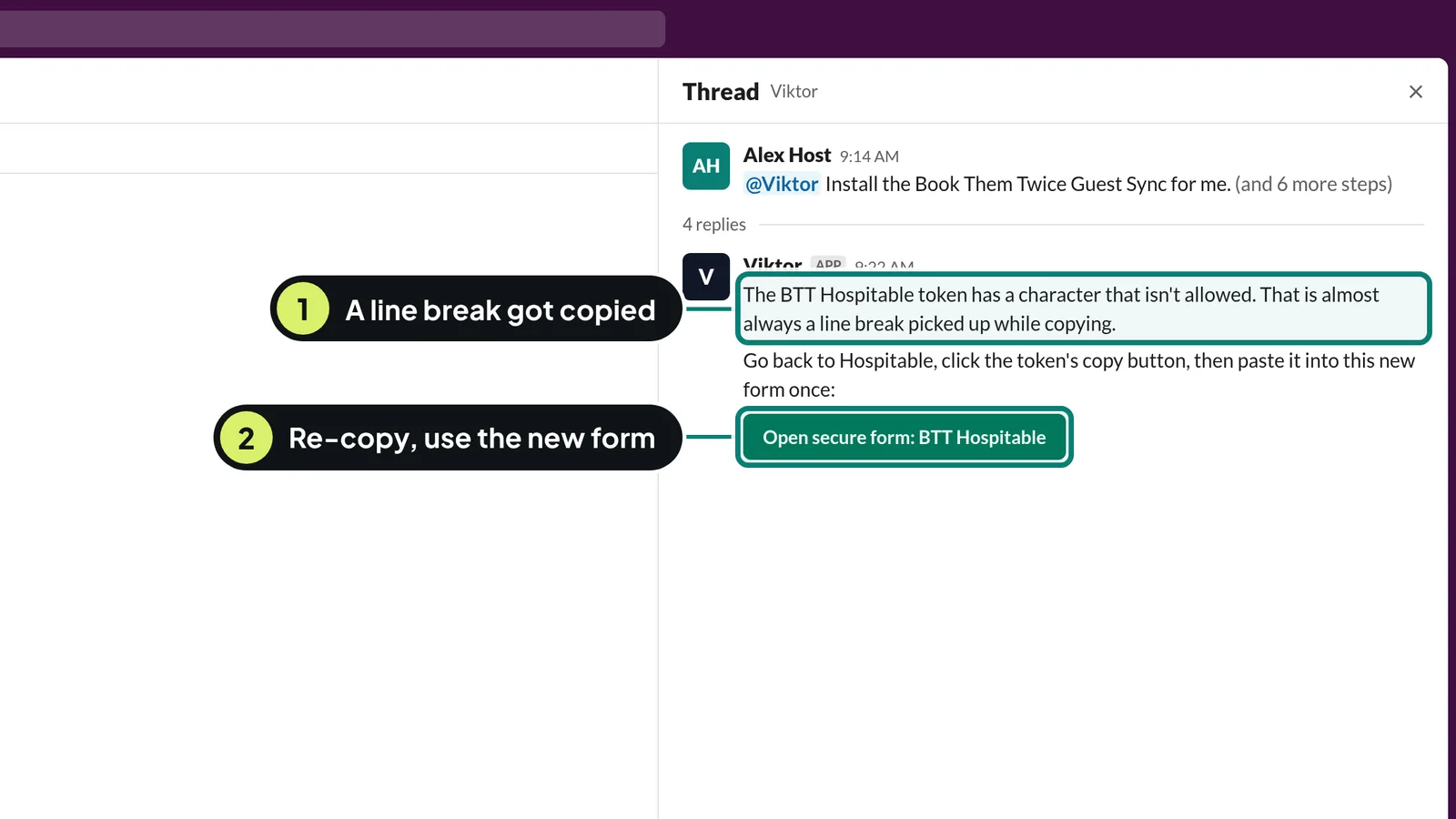
If something goes wrong (3)
- "The token has a character that isn't allowed"
- Almost always a line break picked up while copying. Go back to the source, click its copy button, open the new form link Viktor sends, paste once and save.
- "Rejected" or "401 unauthorized"
- The key is wrong or old. Make a new one at the source (step 3, 4 or 5) and paste it into the new form link.
- You pasted a key into the chat by mistake
- Delete that message, delete the key at the source, make a new one and use the form.
Check the dry run, then say go 10 to 20 minutes
Viktor shows what it would bring in before it writes anything, so you can check the numbers first.
- Viktor posts the dry run: how many properties, stays and guests, and how many would be added.
- If the numbers look about right, type go.
- Viktor asks you to let one tool run on its own (the one that writes to Book Them Twice). Follow its clicks in Viktor and say done.
- Open two or three guests in Book Them Twice and check their stays and totals.
- From now on it runs every night at 3:00 AM and only messages you if something fails.
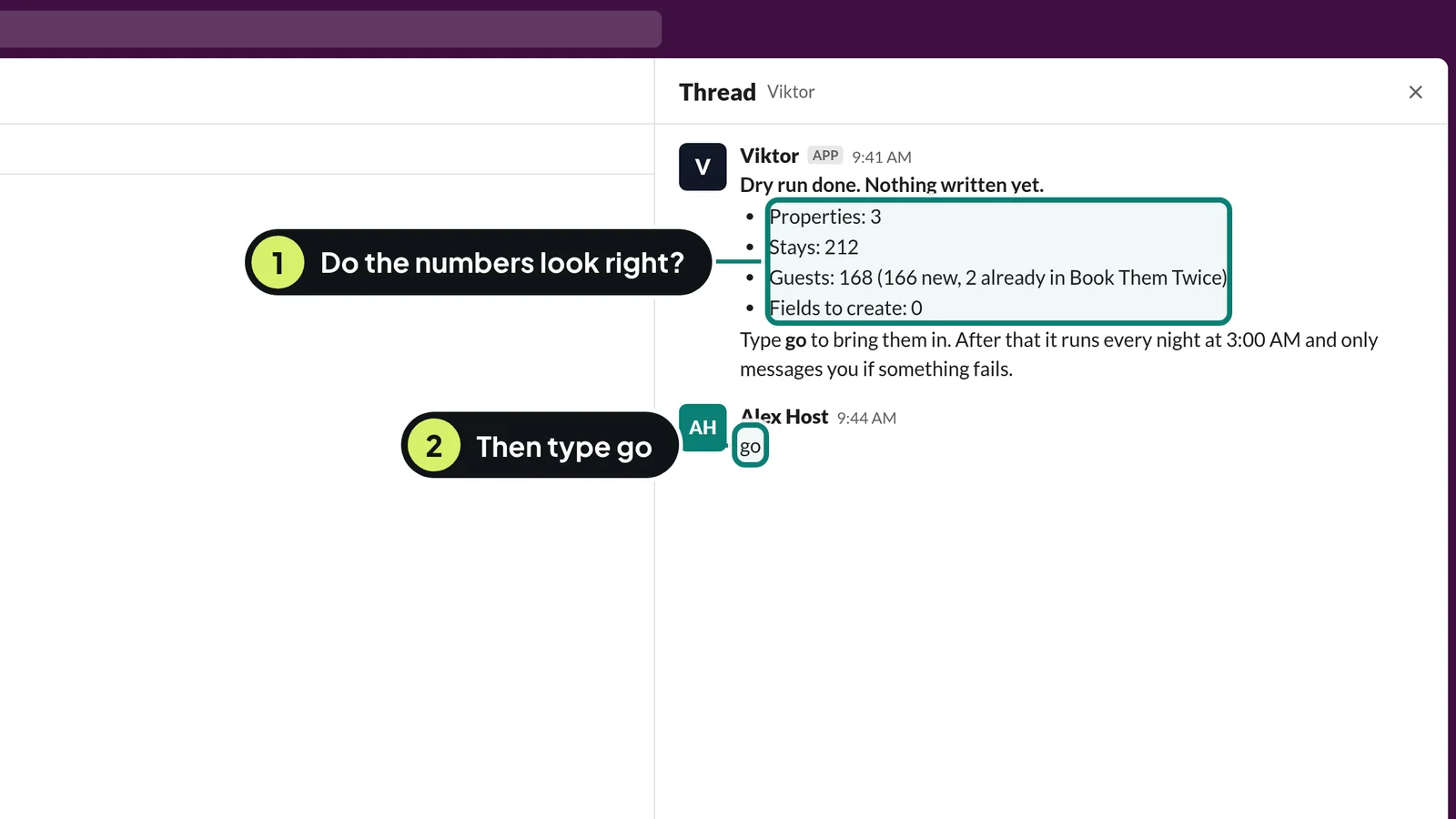
If something goes wrong (2)
- A number looks wrong
- Tell Viktor in the thread which guest or property looks off. Nothing has been written yet.
- Viktor says it is "still working"
- Big accounts take a few minutes. Wait for its answer in the thread before typing again.
Part 3 · steps 9 to 10
Check, then book your call
One message tests everything. Book your kickoff call when it says all green.
Run your ready check 5 minutes
One message tests every connection for real and answers with a green or red list. It catches problems before your call, not during it.
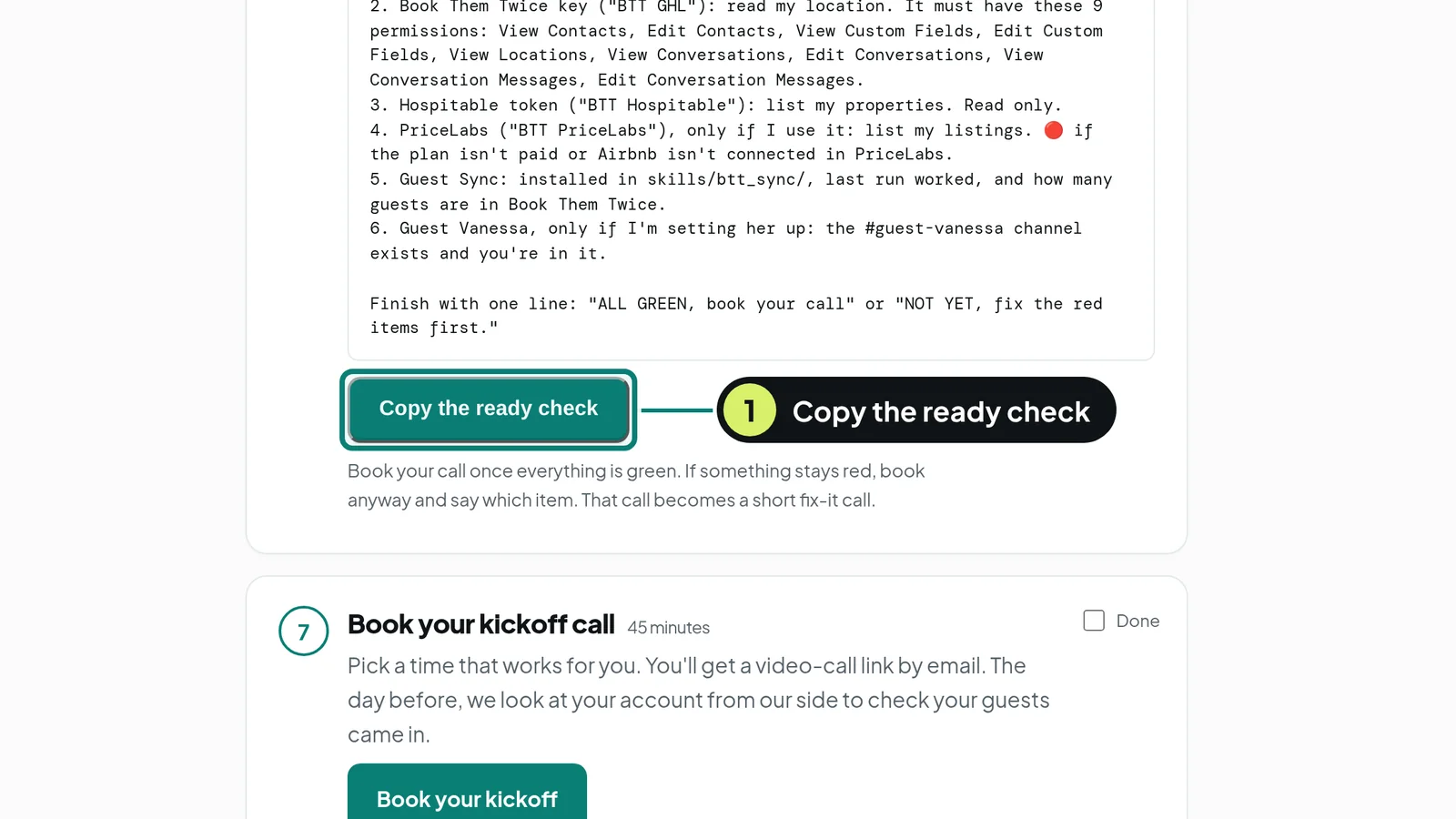
- On your start-here page (bookthemtwice.com/welcome), click Copy the ready check.
- In Slack, type @Viktor, pick it from the list, paste and press Enter.
- Wait for the list. Each line is 🟢 ready or 🔴 not ready, with what to do.
- Done when the last line says ALL GREEN, book your call.
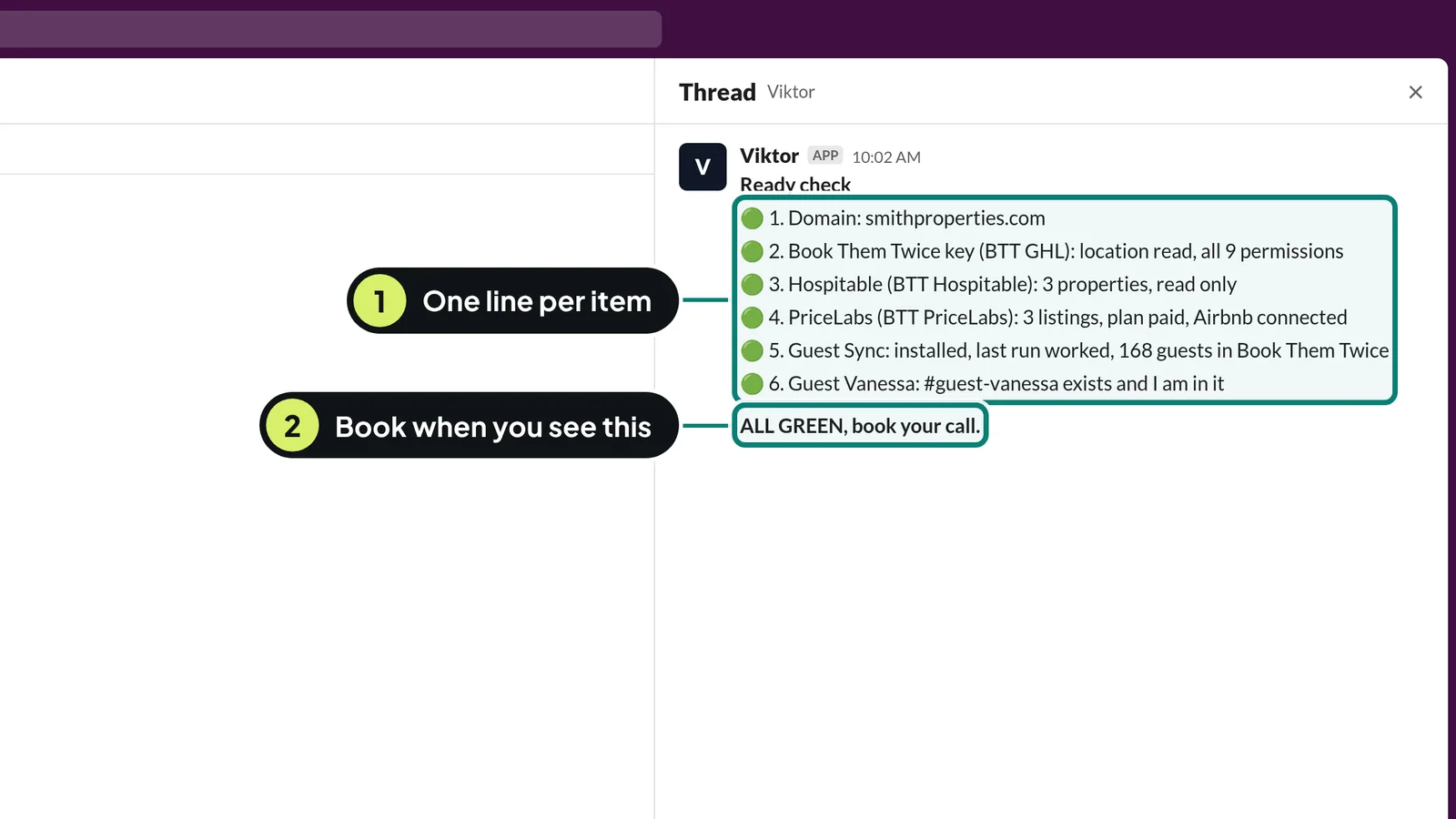
If something goes wrong (2)
- A line is 🔴
- Do what that line says, then run the ready check again.
- Still 🔴 after you tried
- Book the call anyway and write which item is red in the booking notes. That call becomes a fix-it call.
Book your kickoff call 5 minutes
45 minutes on your first result: 5 to check, 30 for your first win live, 10 for what comes next.
- On your start-here page, click Book your kickoff and pick a time.
- The day before, we look at your account from our side.
- On the call: use a computer, join with sound on, and share your whole screen when asked.
If something goes wrong (1)
- Nobody can hear you on the call
- Check the microphone icon at the bottom of the call window. A red line through it means muted. Click it once.
Part 4 · steps 11 to 12
Put your website on your domain
A simple three page website. Phone carriers look at it before they approve your texting, and guests see your name instead of ours.
Make your three page website 45 to 90 minutes
Phone carriers check your website before they let you text guests. They want to see who you are, what you do, how people sign up for texts, a Privacy Policy and Terms.
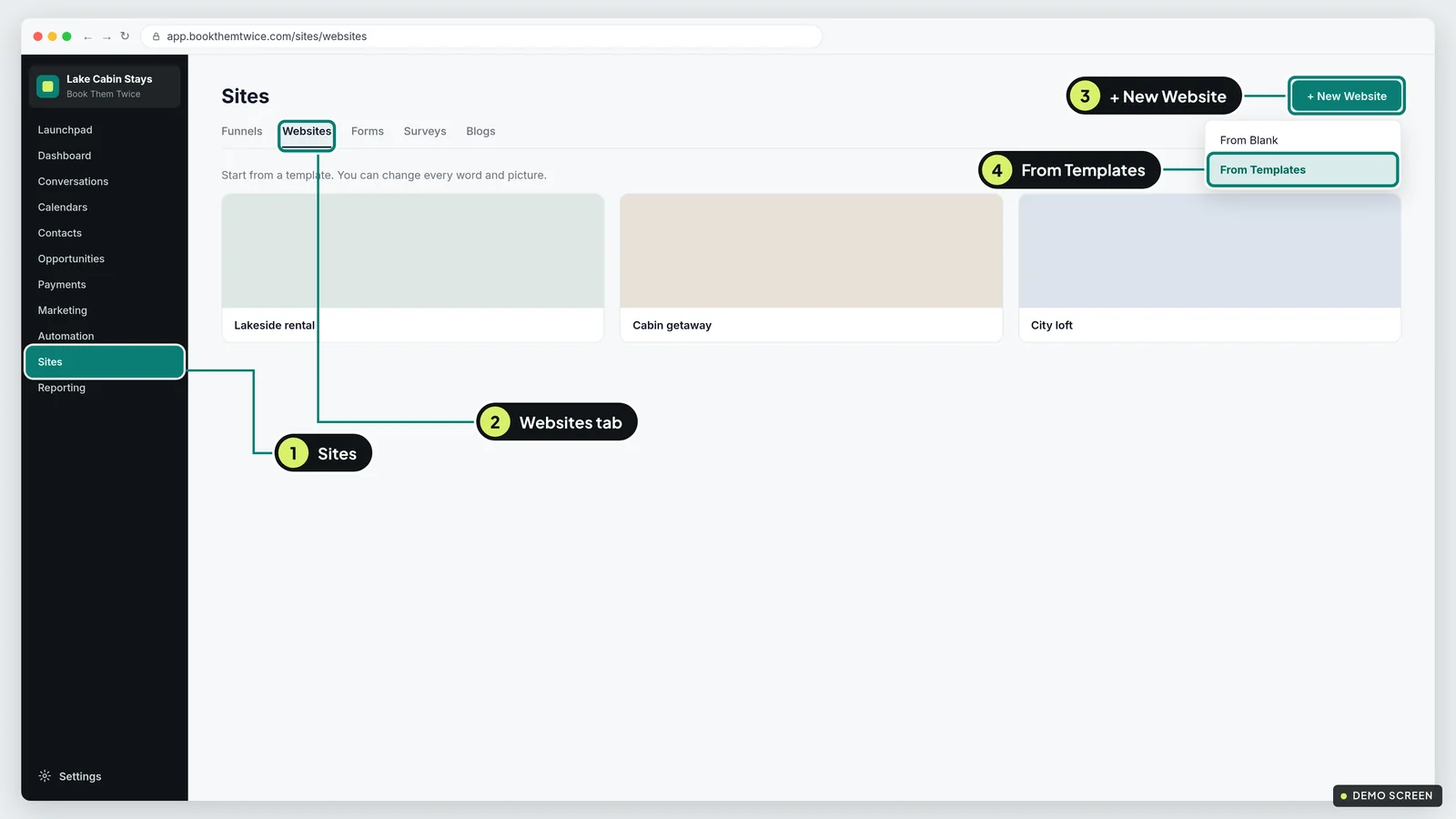
- In Book Them Twice, click Sites in the left menu, then the Websites tab.
- Click + New Website. Pick From Templates, choose a simple design, name it after your business and click Create.
- Open the home page with Edit. Put in your legal business name, a few sentences about your rentals, your town, and a phone number and email guests can reach you on.
- Add one line that says guests can choose to get texts from you, for example: Guests can sign up for stay updates and returning guest offers by text.
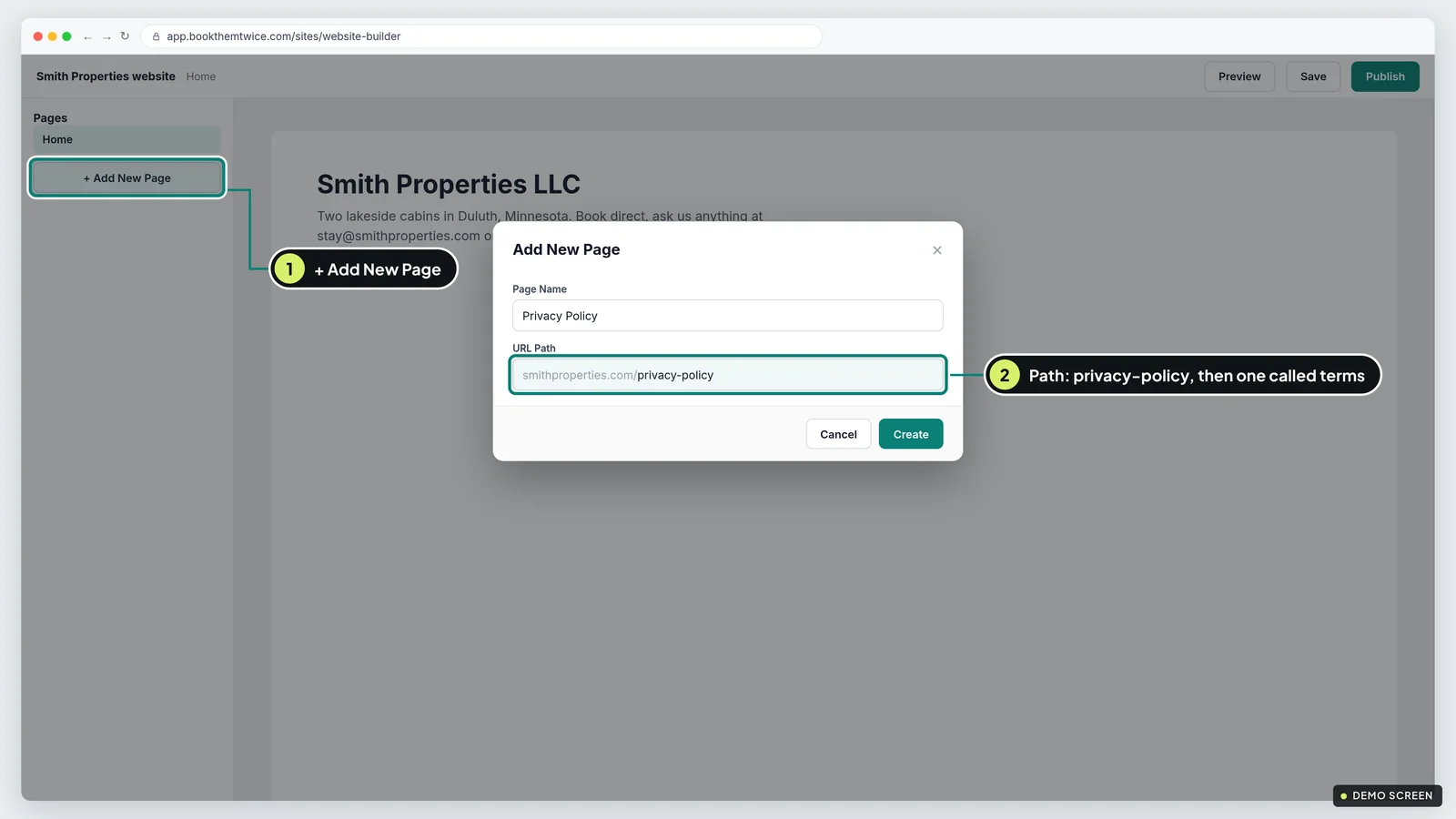
- Open Pages and click Add New Page. Name it Privacy Policy with the path privacy-policy. Add a second one called Terms with the path terms.
- Paste our starting text into each page: bookthemtwice.com/setup-guide/privacy-policy-template.txt and bookthemtwice.com/setup-guide/terms-template.txt. Replace every part in [square brackets] with your own details.
- Put links to Privacy Policy and Terms in the footer of every page, then click Save. You publish in the next step.
If something goes wrong (3)
- The account name shows as something like Jane Smith's Account
- Use your legal business name everywhere on the site, exactly as it is on your tax paperwork. Carriers compare it with your registration in step 20.
- The template has a big form and little else
- Carriers reject a site that is only a form. Add a few sentences about your rentals and your contact details.
- You're not sure the legal text fits your business
- The templates are a starting point, not legal advice. Have your own lawyer or accountant read them if you're unsure. Keep the texting paragraphs word for word, because carriers look for them.
Connect your domain and publish 15 minutes, then up to a day of waiting
A brand new domain shows a parked page until you point it at your website, and carriers reject parked domains.
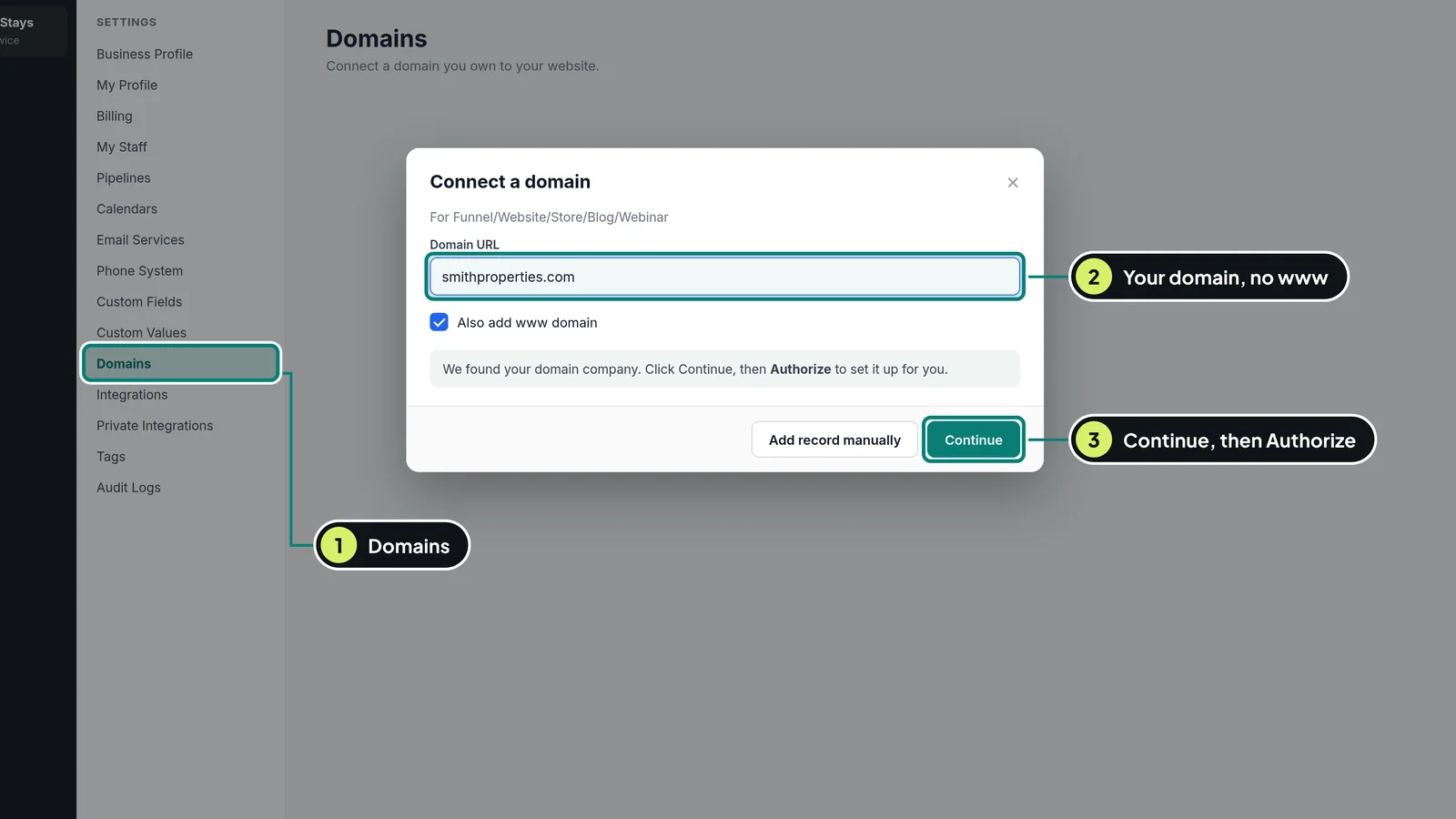
- Click Settings at the bottom left, then Domains. On some accounts it says Domains & URL Redirects.
- Click + Connect a domain, then Connect next to Funnel/Website/Store/Blog/Webinar.
- Type your domain without www, like smithproperties.com. Leave the box that also adds www ticked. Click Continue.
- If you see Authorize, click it, log in to your domain company and approve. Close that tab and come back. This works for GoDaddy, Cloudflare and IONOS.
- Pick your website, pick your home page and click Link Domain.
- Open your website and click Publish. Make sure the home page, Privacy Policy and Terms are all published.
- Open your domain in a private browser window. You should see your home page with a padlock next to the address.
If something goes wrong (4)
- There is no Authorize button
- Click Add record manually. At your domain company, open the DNS records. Change the A record named @ to 162.159.140.166 and the CNAME named www to sites.ludicrous.cloud. Save both and come back.
- It still says pending after an hour
- Wait up to 24 hours. Then check there is only one A record named @ and no AAAA record named @. Delete the extra one.
- Your domain is on Cloudflare and won't connect
- In Cloudflare, click the orange cloud next to the record so it turns grey (DNS only).
- You see a 404 page
- Open Settings, Domains, click Manage on your domain and set your home page as the Default Page. Then publish the home page again.
Part 5 · steps 13 to 17
Send email from your own domain
Guests see your business name and address on every email, and their replies come back into Book Them Twice.
Add your sending domain 10 minutes
Right now your emails go out from a shared address. If you use a Gmail or Yahoo address, guests may even see a strange one like you+yahoo.com@ followed by our domain. Your own sending domain fixes that.
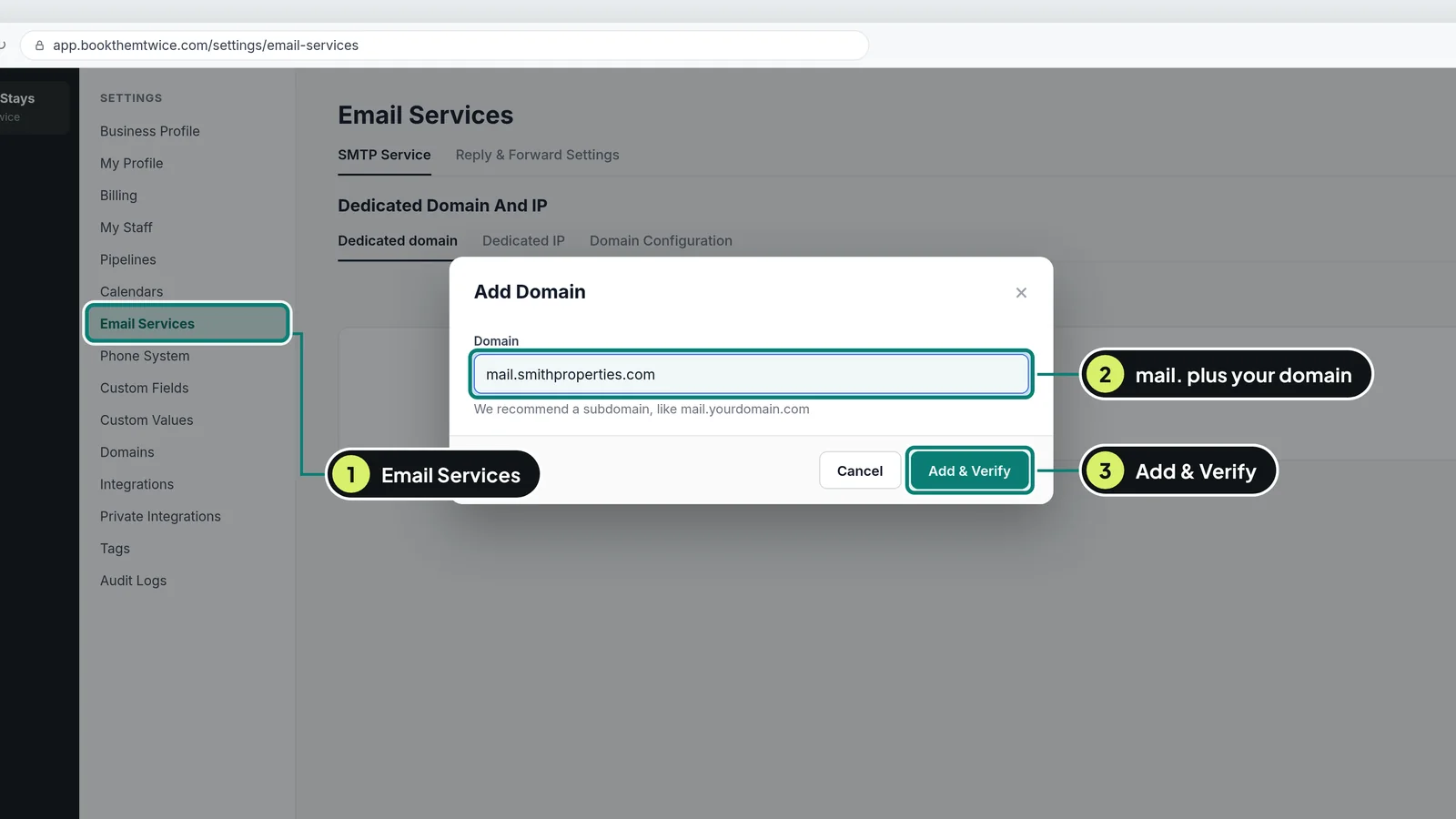
- Click Settings, then Email Services.
- On the SMTP Service tab, click Dedicated Domain And IP, then + Add Domain at the top right.
- Type mail. followed by your domain, all lowercase, like mail.smithproperties.com. Use mail. and not your bare domain, so a mistake with email never affects your website or your own inbox.
- Click Add & Verify.
- If it offers to set things up for you, click Continue, log in to your domain company and approve. Then skip to step 15.
- Otherwise click Add record manually. You get a list of records with copy buttons. Keep this tab open for the next step.
If something goes wrong (2)
- It says Domain already pointing to email server
- That name is already used for email somewhere else. Use send. or mg. instead of mail., like send.smithproperties.com.
- You don't see Dedicated Domain And IP
- Email support@bookthemtwice.com and we switch it on for your account.
Add the records at your domain company 20 to 40 minutes
These records prove to Gmail, Yahoo and Outlook that Book Them Twice may send email for your domain. Skip this step if step 13 set them up for you.
- In a new tab, log in to the company you bought your domain from and open its DNS records. At GoDaddy: Domain Portfolio, your domain, DNS. At Namecheap: Domain List, Manage, Advanced DNS. At Cloudflare: your domain, DNS, Records.
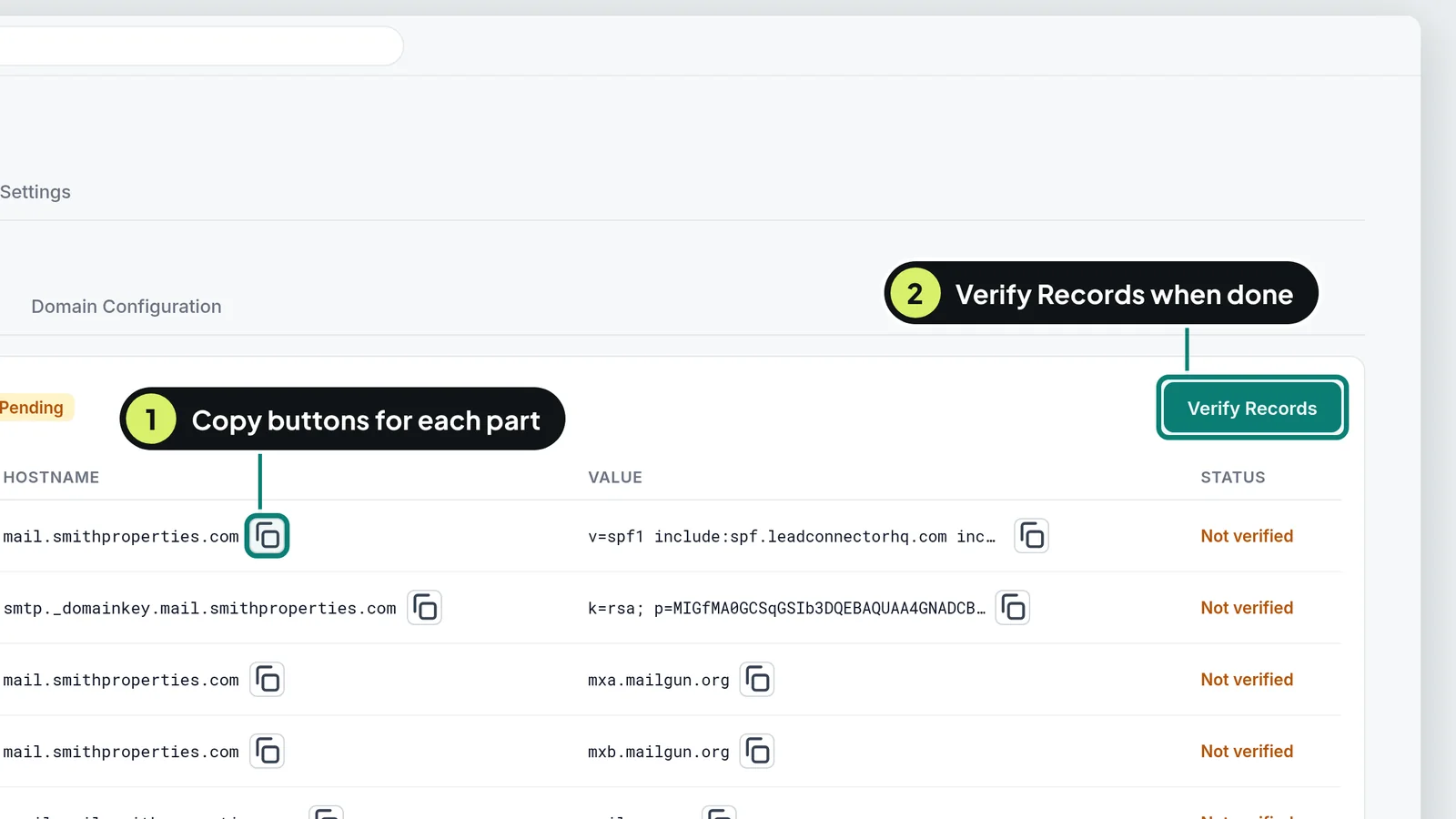
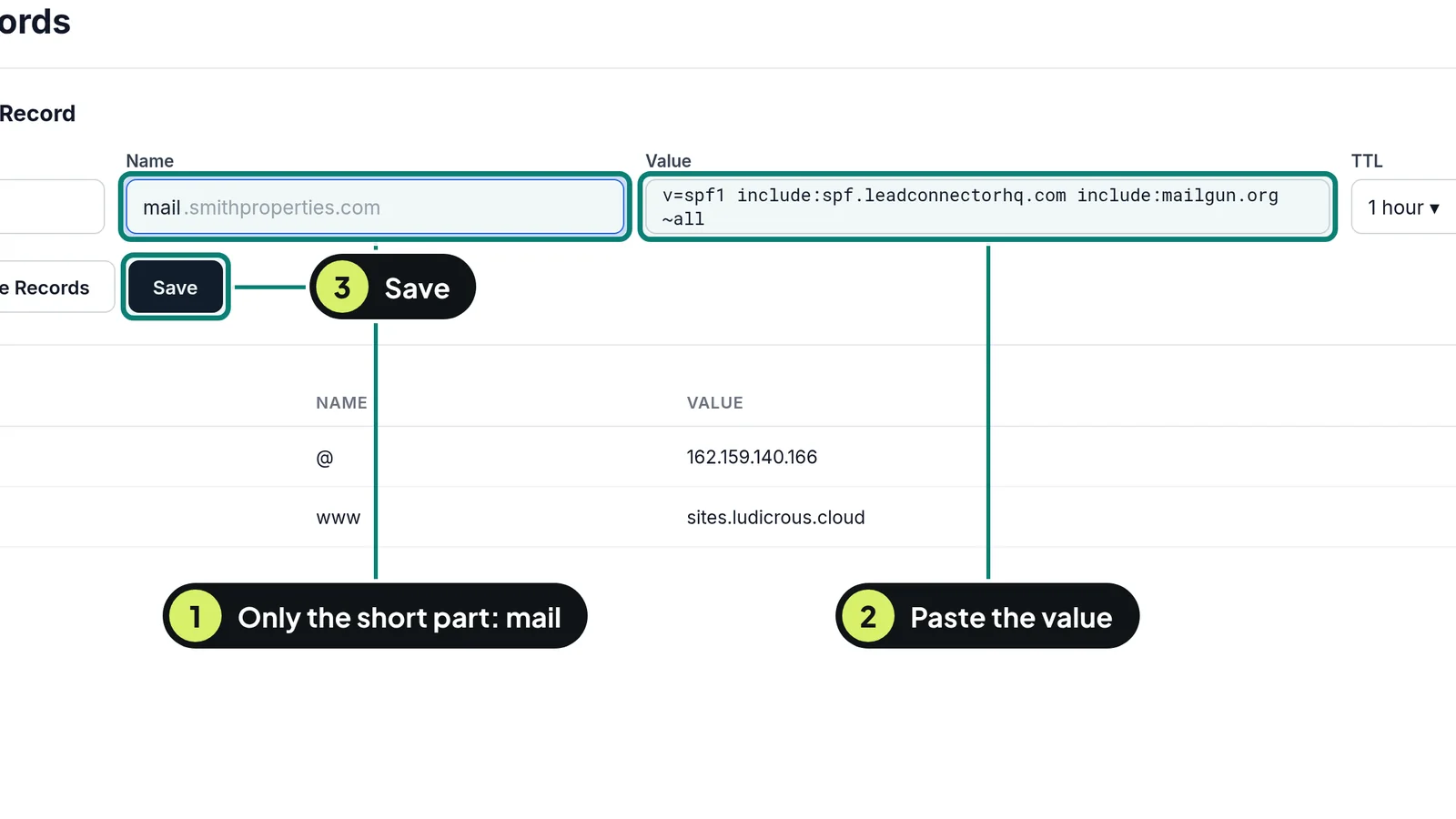
- Add each record from the Book Them Twice list one at a time: click Add New Record, pick the same Type, then copy the Host and Value across with the copy buttons.
- In the Host or Name box, type only the part before your domain. If Book Them Twice shows mail.smithproperties.com, type mail. If it shows email.mail.smithproperties.com, type email.mail. Your domain company adds the rest.
- There are usually six: two TXT (one starts with v=spf1, one is a long key), two MX with priority 10, one CNAME, and one TXT named _dmarc.mail.
- Add one more of your own if you don't already have one: Type TXT, Name _dmarc, Value v=DMARC1; p=none;
- Save. GoDaddy may ask for a code it texts or emails you. That is normal.
If something goes wrong (5)
- A record never verifies
- Look at its Name. If it shows your domain twice, like mail.smithproperties.com.smithproperties.com, edit the Name down to the short part.
- Namecheap has no MX option
- In Advanced DNS, find Mail Settings and pick Custom MX. Then add the two MX records with Host mail.
- Cloudflare: the CNAME won't verify
- Click the orange cloud next to it so it turns grey (DNS only).
- You already have a record named _dmarc
- Keep the one you have and don't add a second. Two records with the same name break it.
- You added the records and nothing changes
- Your DNS may be managed somewhere else, for example your old website company. Ask your Viktor: "Where is the DNS for my domain managed?" Then add the records there.
Verify, then make it your sender 15 minutes, then up to 2 days of waiting
Until you pick it as your sender, Book Them Twice keeps using the shared address.
- Back in Book Them Twice, click Verify Records. Each line turns green as it checks out. Most do within an hour. Come back later if some stay grey.
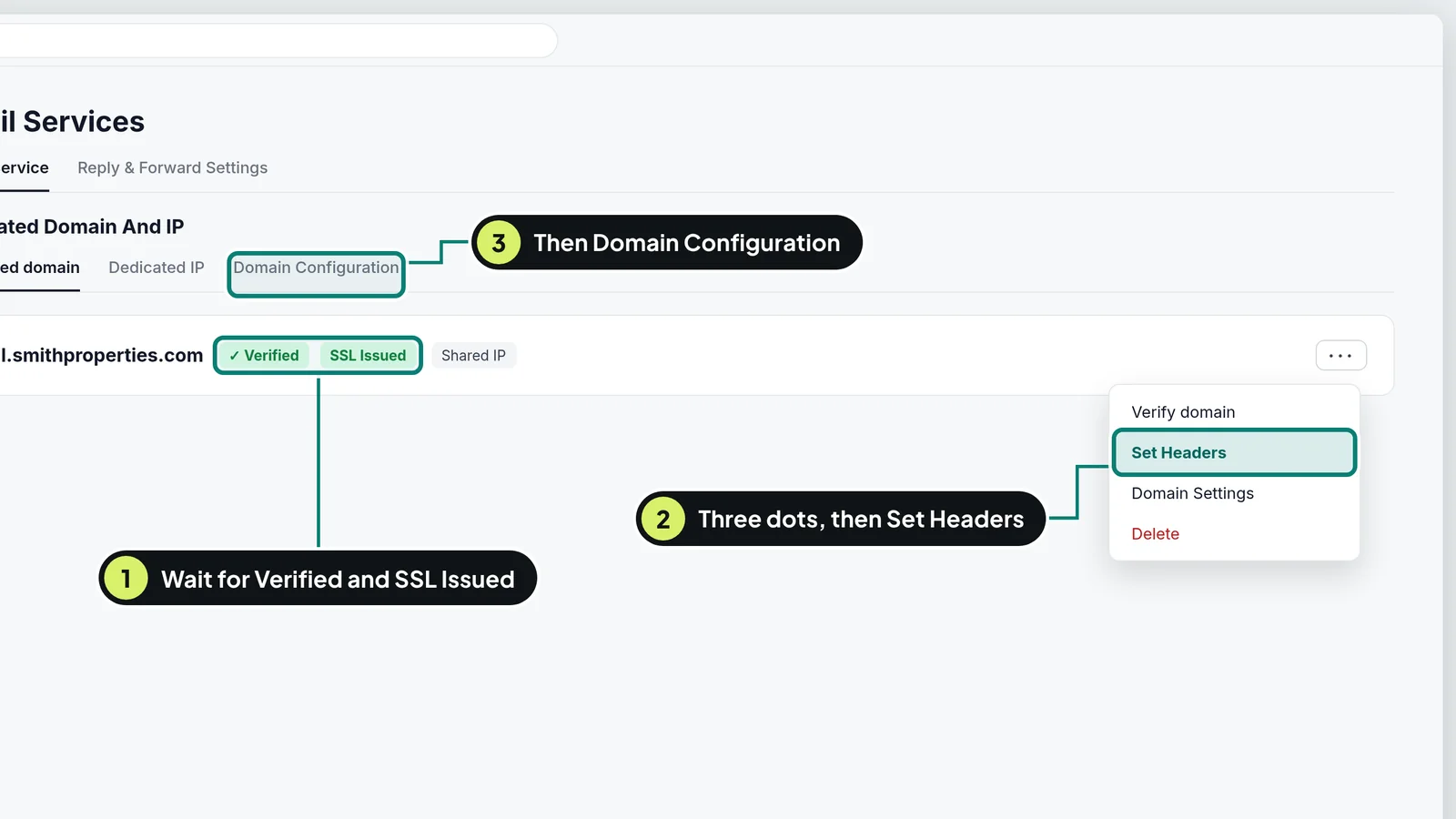
- When the domain shows Verified and SSL Issued, open its three dot menu and click Set Headers.
- From Name: your name and business, like Alex at Smith Properties. From Email: an address on your sending domain, like stay@mail.smithproperties.com. Click Save.
- Open the Domain Configuration tab and choose your domain for every row, including Default.
- Click Settings, Business Profile, and change Business Email to the same address. Save.
- In Email Services, open Reply & Forward Settings. Leave Reply Address empty, so guest replies land in Conversations where you and Guest Vanessa see them. If you also want a copy in your own inbox, put that address in Forwarding Address and save.
If something goes wrong (3)
- SSL stays Pending for more than 30 minutes
- Open the three dot menu and click Verify domain again.
- Set Headers says the email doesn't match
- The From Email has to end in your sending domain or your main domain, like stay@mail.smithproperties.com or stay@smithproperties.com. A Gmail or Yahoo address won't work.
- Replies don't show up in Conversations
- Check Reply Address is empty and both MX records from step 14 are verified.
Send a test, then start slowly 15 minutes
One test shows what guests will see. A brand new domain also needs about 4 weeks of small, steady sending before inboxes fully trust it.
- Open Contacts and add yourself with a Gmail or Outlook address.
- Open your contact, send yourself a short email from Conversations, and check it arrives showing your name and your domain.
- Reply to it from your inbox. Your reply should show up in Conversations within a few minutes.
- For the first 4 weeks, send to your most recent guests first, in batches of 50 to 100 a day. Big blasts from a new domain land in spam.
If something goes wrong (2)
- The test landed in spam
- Normal for a new domain. Mark it Not spam, keep sends small and steady, and it settles within a few weeks.
- Sending paused because of bounces
- Too many old or wrong addresses. Ask your Viktor to check the list for bad addresses before your next send.
Optional: a real inbox on your domain 30 to 60 minutes
Only if you want to read and write email as you@yourdomain.com in Gmail. Book Them Twice works without it.
- Go to workspace.google.com and start a free trial of Google Workspace Business Starter. Choose to use a domain you already own. It costs about $7 a month per person after the trial.
- Google gives you a TXT record to prove you own the domain. Add it at your domain company the same way as step 14, with Name @.
- Add Google's MX record: Name @, Priority 1, Value smtp.google.com. Never change or delete the records that start with mail.
- In Google's Admin console, click Activate Gmail. Mail can take up to 72 hours to start arriving.
- In Book Them Twice, put your new address in Forwarding Address (step 15), not in Reply Address.
If something goes wrong (2)
- Google says the domain is already in use
- It is attached to another Google account. Ask whoever set that up to remove it, or contact Google support.
- Mail doesn't arrive after a day
- Delete any other MX record named @, keep only smtp.google.com, and click Activate Gmail again.
Part 6 · steps 18 to 22
Set up business texting
A local number and the registration phone carriers require before any business can text. Approval takes 1 to 2 weeks.
Know who you may text 5 minutes of reading
Phone carriers block numbers that text people who never said yes. These are carrier and federal rules, not ours. This is a plain summary, not legal advice.
- Stay messages to a guest with a current or upcoming booking, like check-in details, are fine.
- Offers and rebooking texts only go to people who ticked the marketing box on your website or at your direct booking checkout. A phone number on a booking is not a yes.
- Guests copied in from Hospitable (Airbnb, Vrbo and Booking.com guests) have not opted in to texts. Guest Vanessa only texts offers to guests who signed up on your own website or booking form.
- Never text before 8 AM or after 9 PM in the guest's time zone.
- When someone replies STOP, they are removed for good. Book Them Twice does this for you.
If something goes wrong (1)
- You want to text your past guests anyway
- Email them instead with a link to sign up for texts on your website. The ones who tick the box can then get texts.
Buy your texting number 15 minutes
Guests get texts from a local number that belongs to your business, not your personal phone.
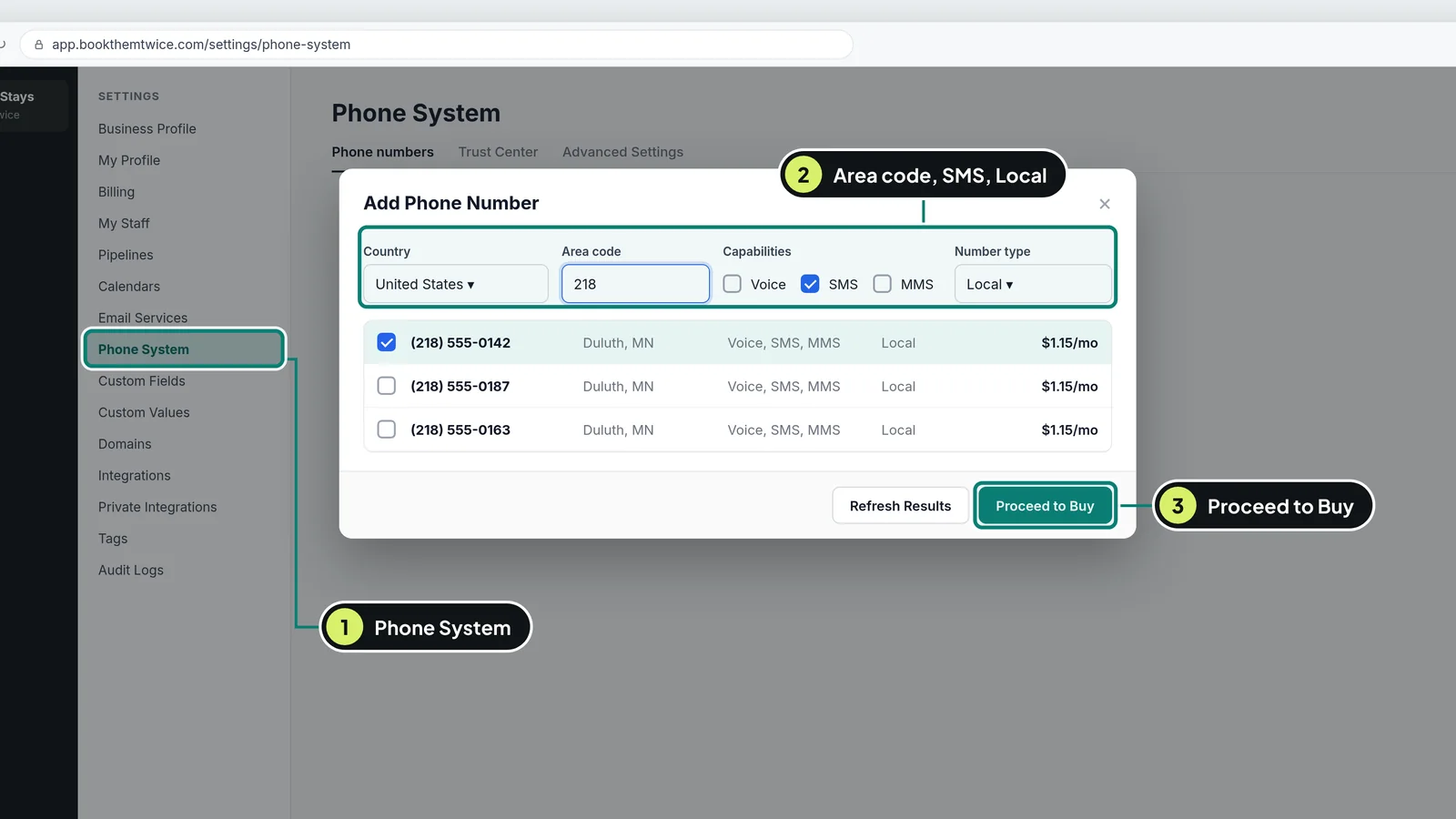
- Click Settings, then Phone System. On older screens it says Phone Numbers.
- Open the Phone numbers tab. Click + Add Number, then Add Phone Number.
- Pick United States, type your area code, tick SMS and choose Local.
- Pick a number and click Proceed to Buy. A local number costs about $1.15 a month. The screen shows the exact price before you pay.
- The first time, it asks for a photo of your driver's license or passport and a selfie. It has to be you, the account owner.
- Your new number shows with Registration required. That is the next two steps.
If something goes wrong (3)
- It asks for a card or says your balance is too low
- Add a card under Settings, Billing first (it may say Company Billing). Numbers, texts and emails are paid from that balance.
- The ID check is stuck
- Refresh the page and try again. If it is still stuck the next day, email support@bookthemtwice.com.
- You don't have an EIN
- Buy just one local number. Registering without an EIN allows one number only.
Register your business 20 to 30 minutes
Carriers want to know which real business is texting. This is the first half of the registration, called A2P 10DLC.
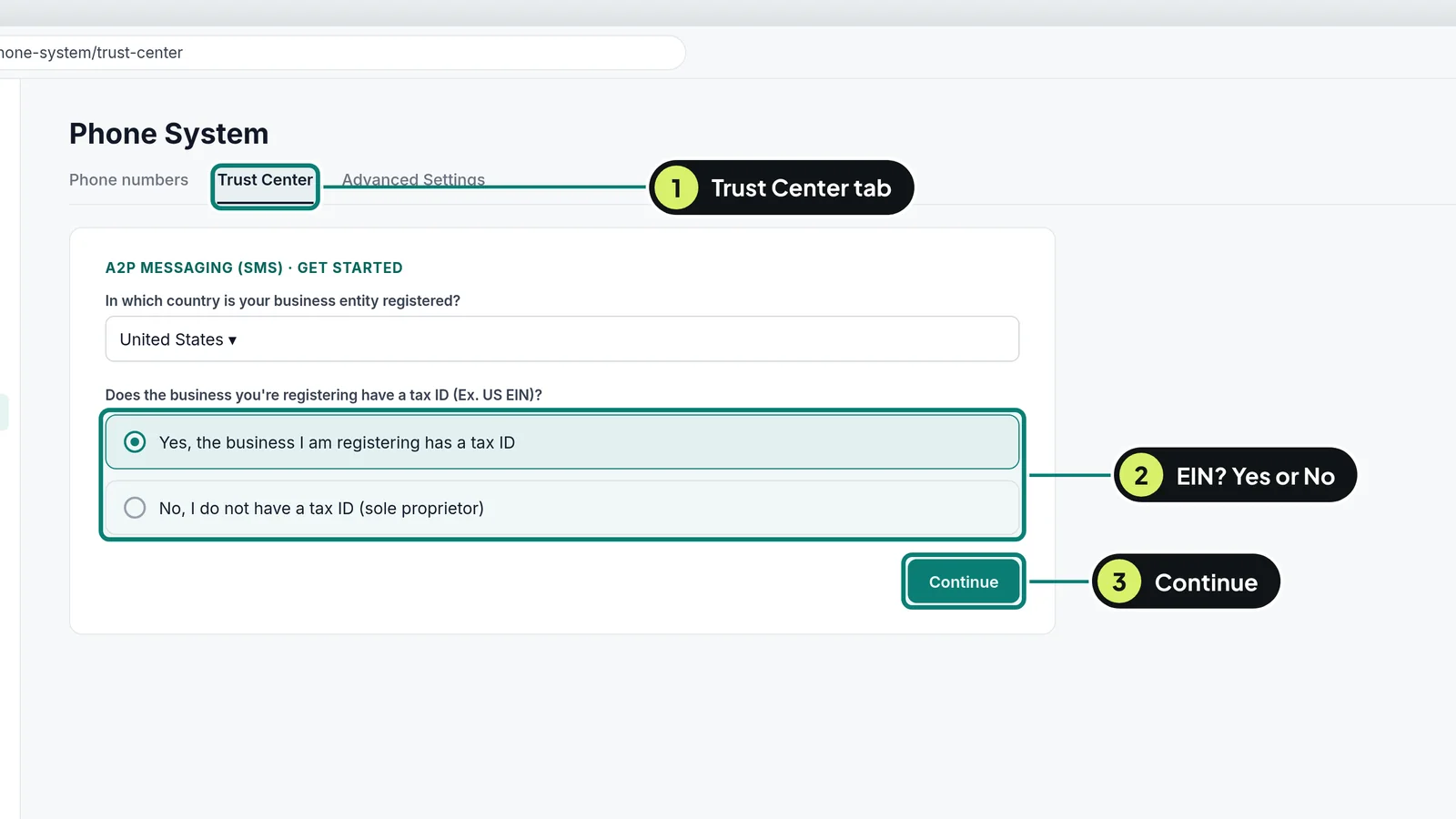
- In Phone System, open the Trust Center tab. Under A2P Messaging, click Start Registration.
- Pick United States, then answer whether your business has a tax ID (EIN).
- With an EIN (every LLC has one): upload your IRS EIN letter if you have it, or type your legal business name and EIN exactly as the IRS letter shows them. Business type: usually Limited Liability Corporation. Industry: Hospitality. Use an email on your own domain and your website address.
- Without an EIN: use your own full name, no LLC or Inc. The phone must be your real mobile number, and the email must be a regular one like Gmail.
- Fill in your street address (no P.O. box) and your contact details as the owner.
- Without an EIN, you get a text asking you to confirm. Reply YES within 24 hours.
If something goes wrong (3)
- Rejected: name or EIN doesn't match
- Copy the name exactly as it appears on your IRS EIN letter, every word and comma. Not the name on your bank account.
- Rejected: personal email
- With an EIN you need an email on your own domain that you can read, like you@smithproperties.com. Step 17 sets one up.
- Your EIN is less than 2 weeks old
- Wait until it is 15 days old before you submit. Newer ones are often rejected.
Register what you will text, then submit 30 minutes, then 1 to 2 weeks of waiting
The second half tells carriers what you send and how guests say yes. Book Them Twice builds the sign up box for you.
- Keep going in the same registration. For volume, pick Low Volume. It covers far more texts than a host sends.
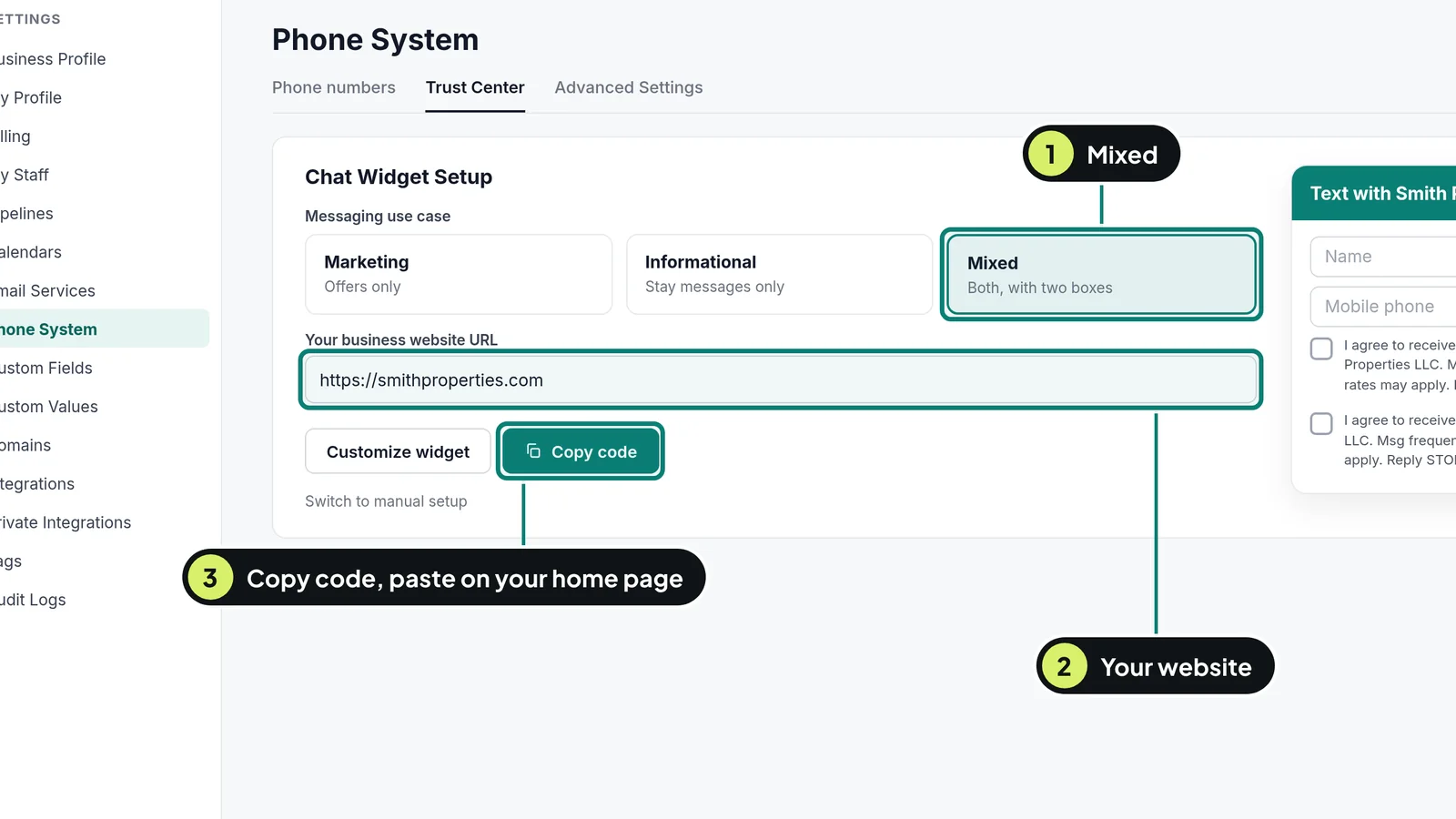
- On Chat Widget Setup, choose Mixed, so guests can say yes to stay messages and to offers separately. Type your website address.
- Answer the short questions, then click Copy code.
- Open your website's home page in the builder, add a Custom JS/HTML element near the bottom, paste the code and save. Publish the home page again. The sign up box must be the only text sign up form on that page.
- Back in the registration, click Review Application. Fix anything it flags and click Review Again until it passes.
- Submit. A one time fee (about $22.50) and a small monthly fee (about $1.50 to $10) start when you submit. The screen shows the exact amounts.
- Don't submit a second one while it says Pending. That restarts the wait.
If something goes wrong (4)
- Rejected: website not working or parked
- Your domain isn't showing your site yet. Finish step 12 and open your domain in a private window to check.
- Rejected: privacy policy
- Your Privacy Policy is missing the paragraph about mobile information. Paste it from the template word for word and publish.
- Rejected: opt in can't be verified
- The sign up box isn't live on your home page, or there is a second form asking for a phone number. Fix it, publish and resubmit.
- Rejected for something else
- Open Trust Center, Brand & Campaigns, click View required fixes next to each reason, fix it and resubmit. Resubmitting is free.
After approval: link your number and test 15 minutes
An approved registration still has to be attached to your number before texts go through.
- Book Them Twice emails you when it is approved. Then open Phone System, Phone numbers.
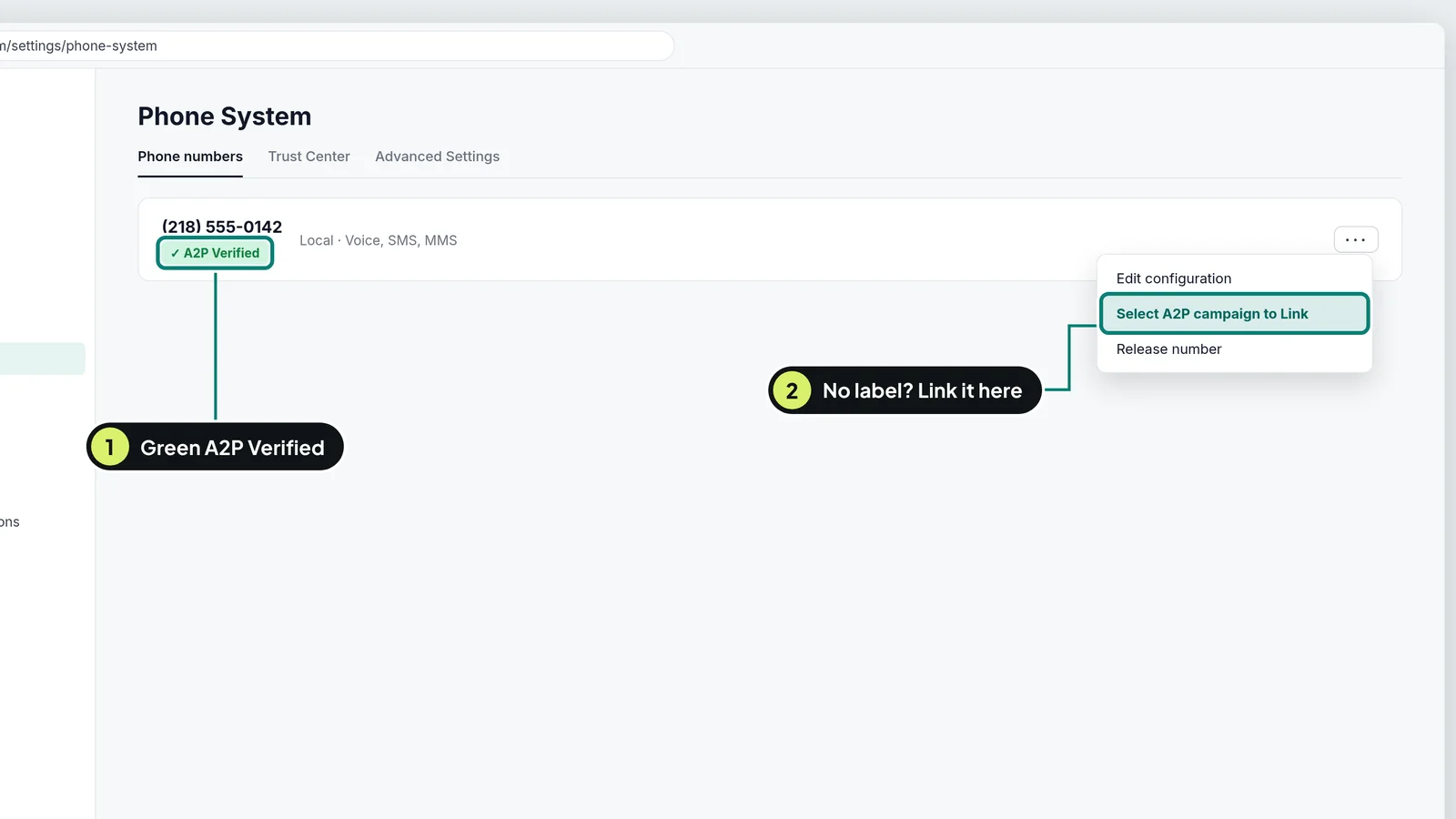
- Your number should show a green A2P Verified label. If it doesn't, open the number's three dot menu, click Select A2P campaign to Link and pick yours.
- Open Advanced Settings, SMS Compliance. Turn on adding an opt out message and adding sender information. Save.
- Text your own mobile from Conversations. Reply STOP to check you get the unsubscribe message, then reply START.
If something goes wrong (2)
- Texts fail with error 30034
- The number isn't linked yet. Use Select A2P campaign to Link from the number's three dot menu.
- Your number got restricted after a send
- Too many people replied STOP or numbers were wrong. Open Advanced Settings, Restriction History, and send only to people who opted in.
Part 7 · steps 23 to 26
Set up Guest Vanessa
Your past-guest rebooking AI coworker. Set her up any time after Part 2. Her emails go out once Part 5 is done, and texts only after Part 6 is approved.
Fill in your details for Guest Vanessa 5 to 10 minutes
Your answers go into her setup message, so she writes in your voice from day one.
- Open the Guest Vanessa page: bookthemtwice.com/guest-vanessa. (Not the Guest Sync page. They look alike.)
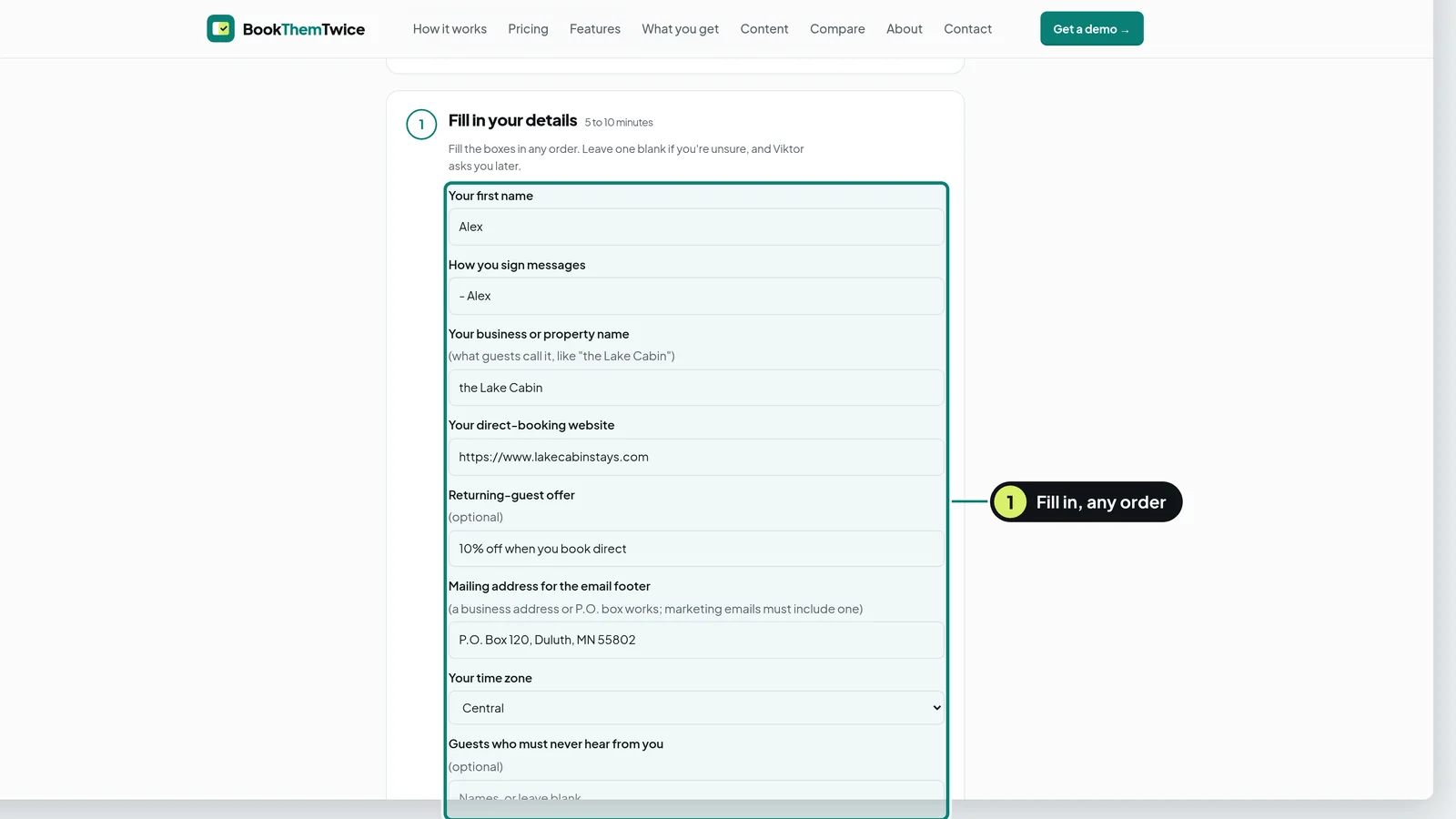
- Fill in the boxes in any order: your name, how you sign, what guests call your place, your booking website, your offer, a mailing address and your time zone.
- No direct-booking website of your own yet? Use your Hospitable direct-booking link for now.
- Leave a box blank if you're unsure. Viktor asks you later.
If something goes wrong (2)
- You're on a page that talks about keys and syncing
- That is the Guest Sync page. Open bookthemtwice.com/guest-vanessa instead.
- You don't want to share your home address
- A business address or a P.O. box works. Marketing emails must show one.
Make her Slack channel 5 minutes
Guest Vanessa works in her own channel, so her drafts and her Friday report never get lost in other chats.
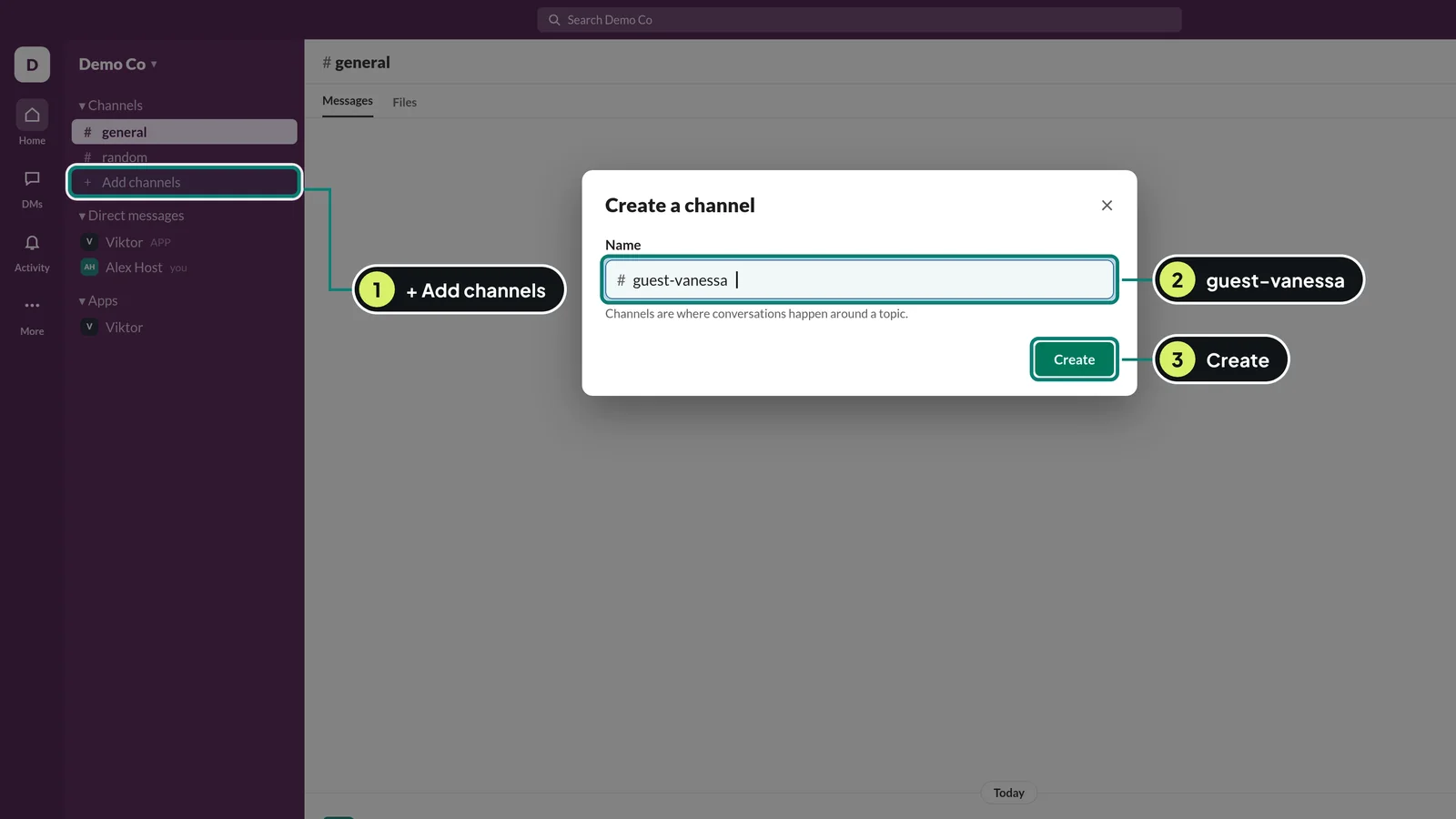
- In Slack, click + Add channels in the left sidebar, then Create a new channel.
- Name it guest-vanessa and click Create. If Slack asks to add people, click Skip.
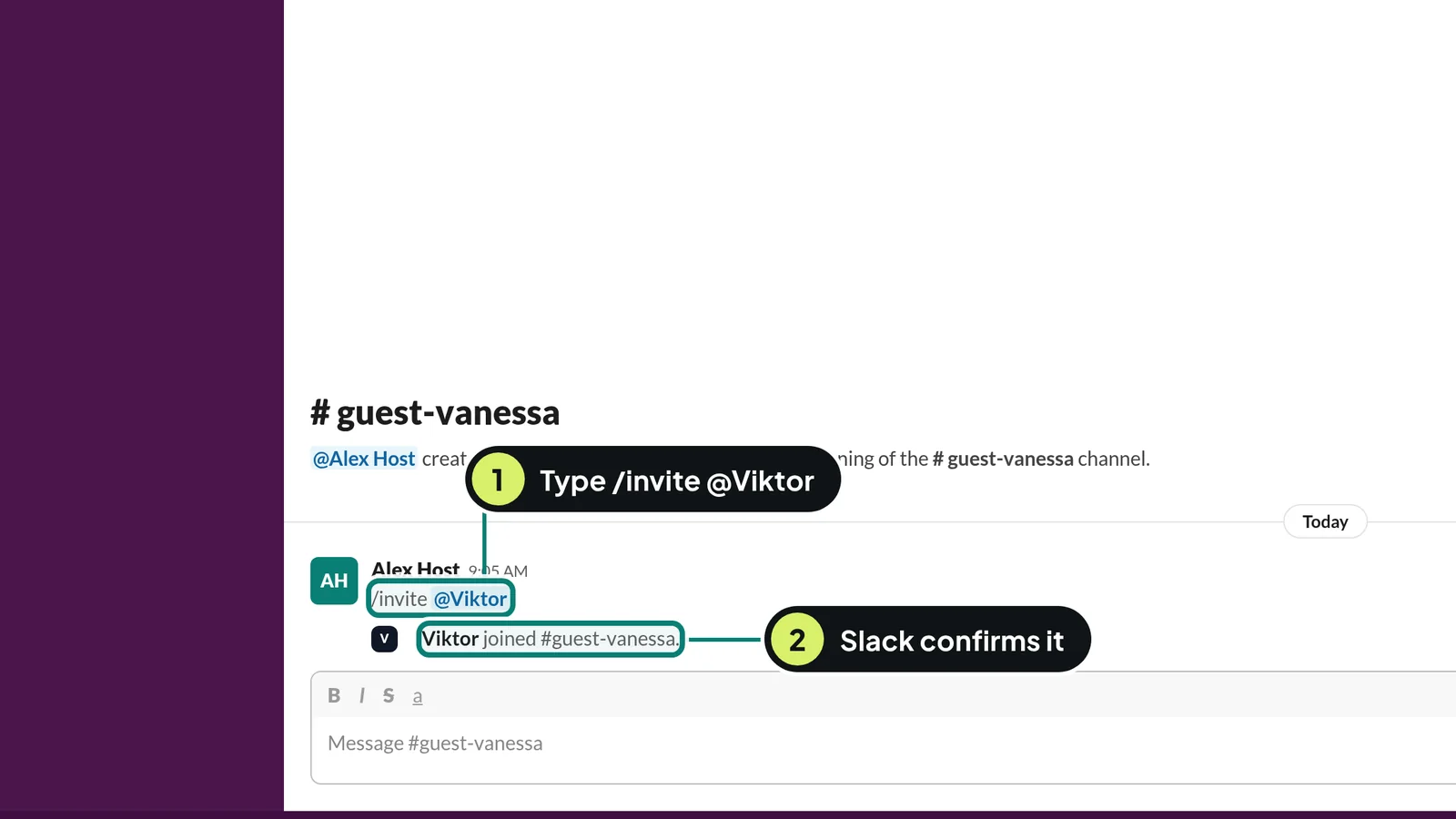
- In the new channel's message box, type /invite @Viktor and press Enter.
- Slack shows that Viktor joined the channel.
If something goes wrong (1)
- Slack says the name is taken
- You may have made it already. Look for #guest-vanessa in your sidebar and use that one.
Send your setup message 5 minutes
One message gives Viktor her job description, her steps and your answers.
- Back on the Guest Vanessa page, click Copy my setup message.
- In #guest-vanessa, type @Viktor and pick it from the list.
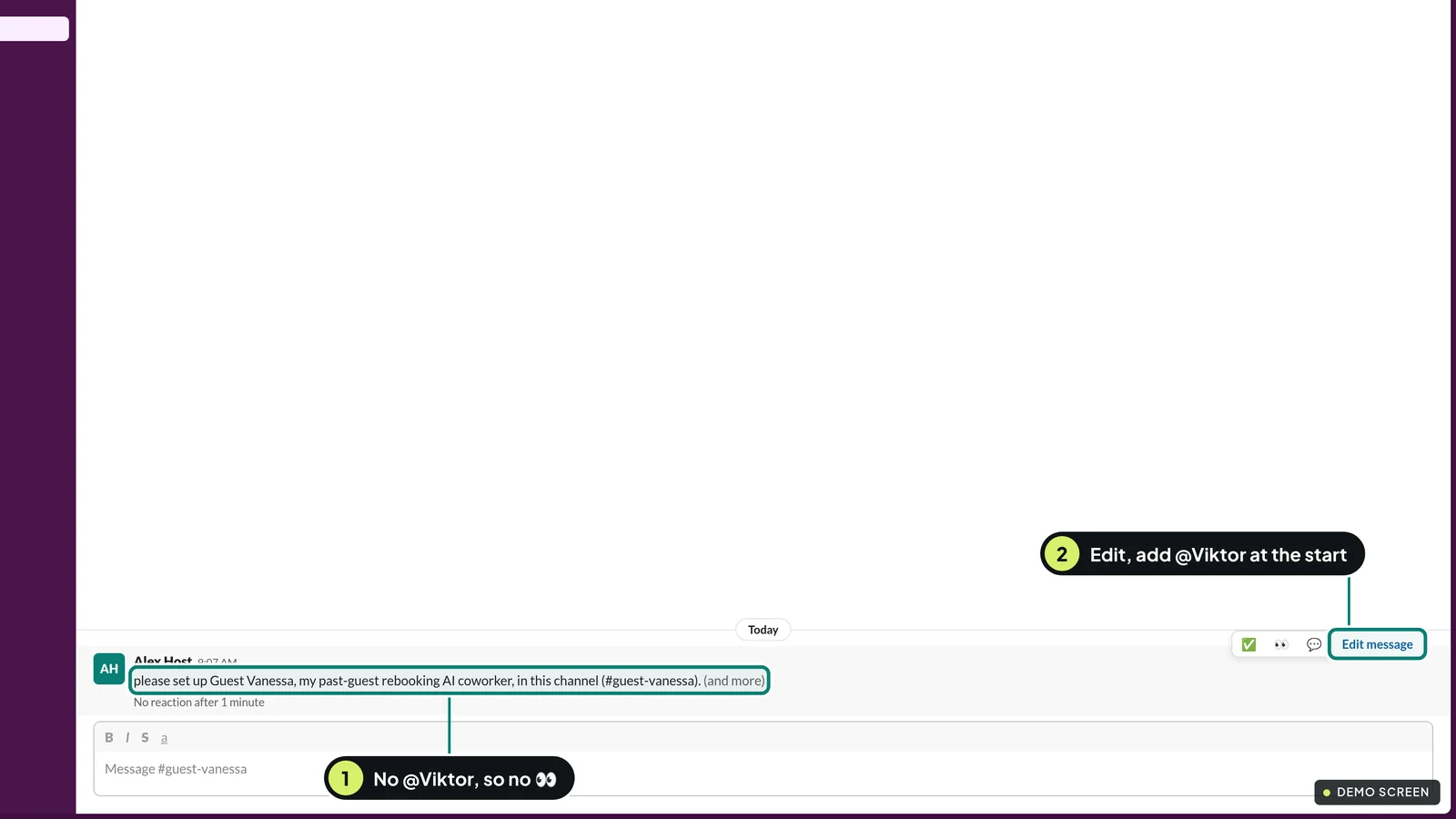
- Paste and press Enter. Look for the 👀.
If something goes wrong (1)
- No 👀 after a minute
- You left out @Viktor. Hover the message, click Edit, add @Viktor at the start, pick it from the list and save.
Answer, approve, then type next 30 to 60 minutes
Viktor sets her up one step at a time and waits for you after each one. Nothing goes to a guest on day one.
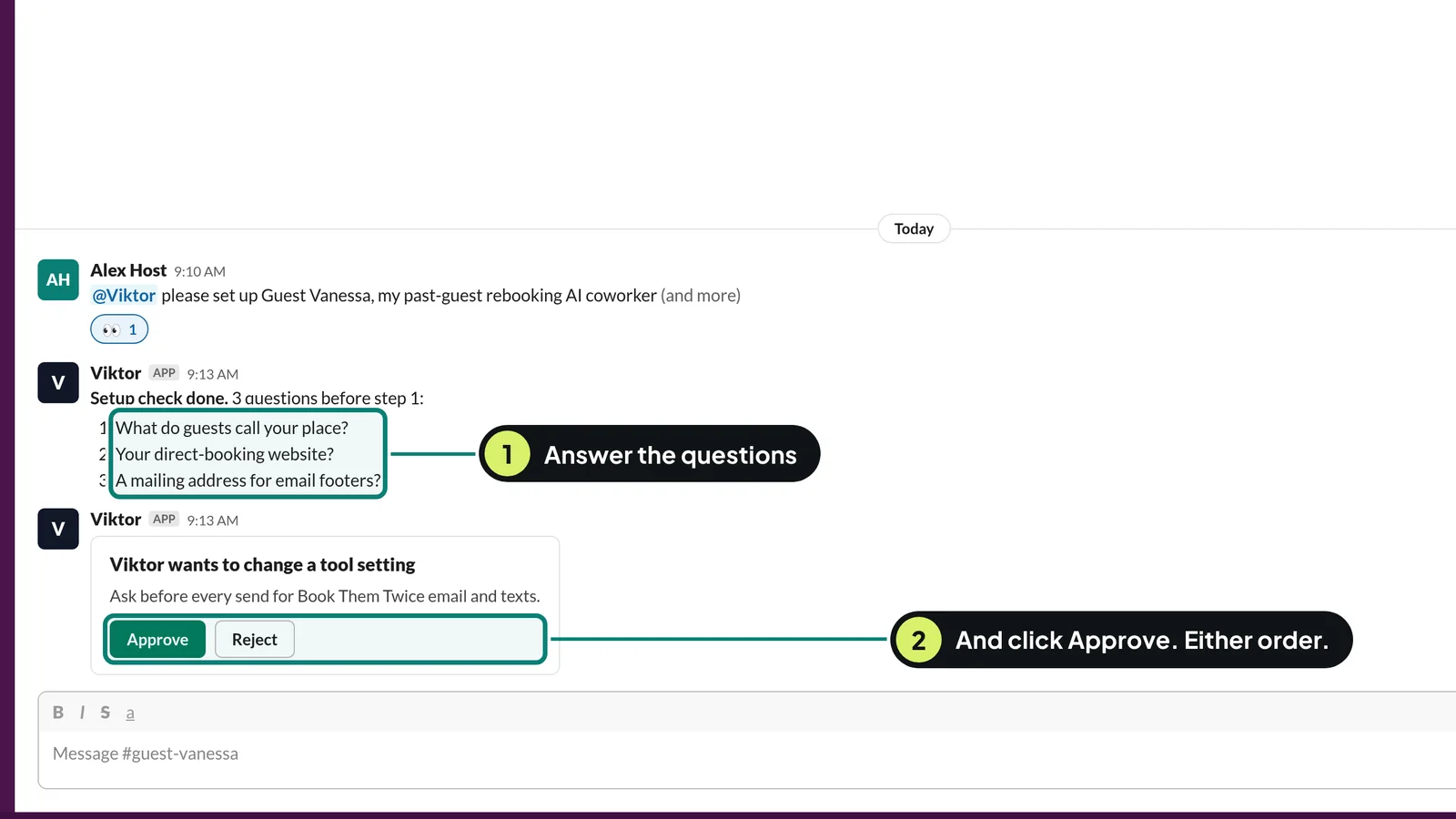
- Viktor checks her tools and your setup, then asks a few questions in one message.
- Answer the questions and click Approve on any approval card. Either order is fine, but do both.
- It shows how many past guests you have and 5 sample messages in your voice. Edit anything you don't like.
- After each step it stops. Type next when you're ready.
If something goes wrong (2)
- Not sure whether to answer first or approve first
- Either order works. Do both.
- A sample message doesn't sound like you
- Reply in the thread with what to change, in your own words. It rewrites them.
Stuck?
Stuck for more than 10 minutes on one step? Email support@bookthemtwice.com with the step number and a screenshot. Or ask your Viktor: it can see your connections and usually knows the fix.